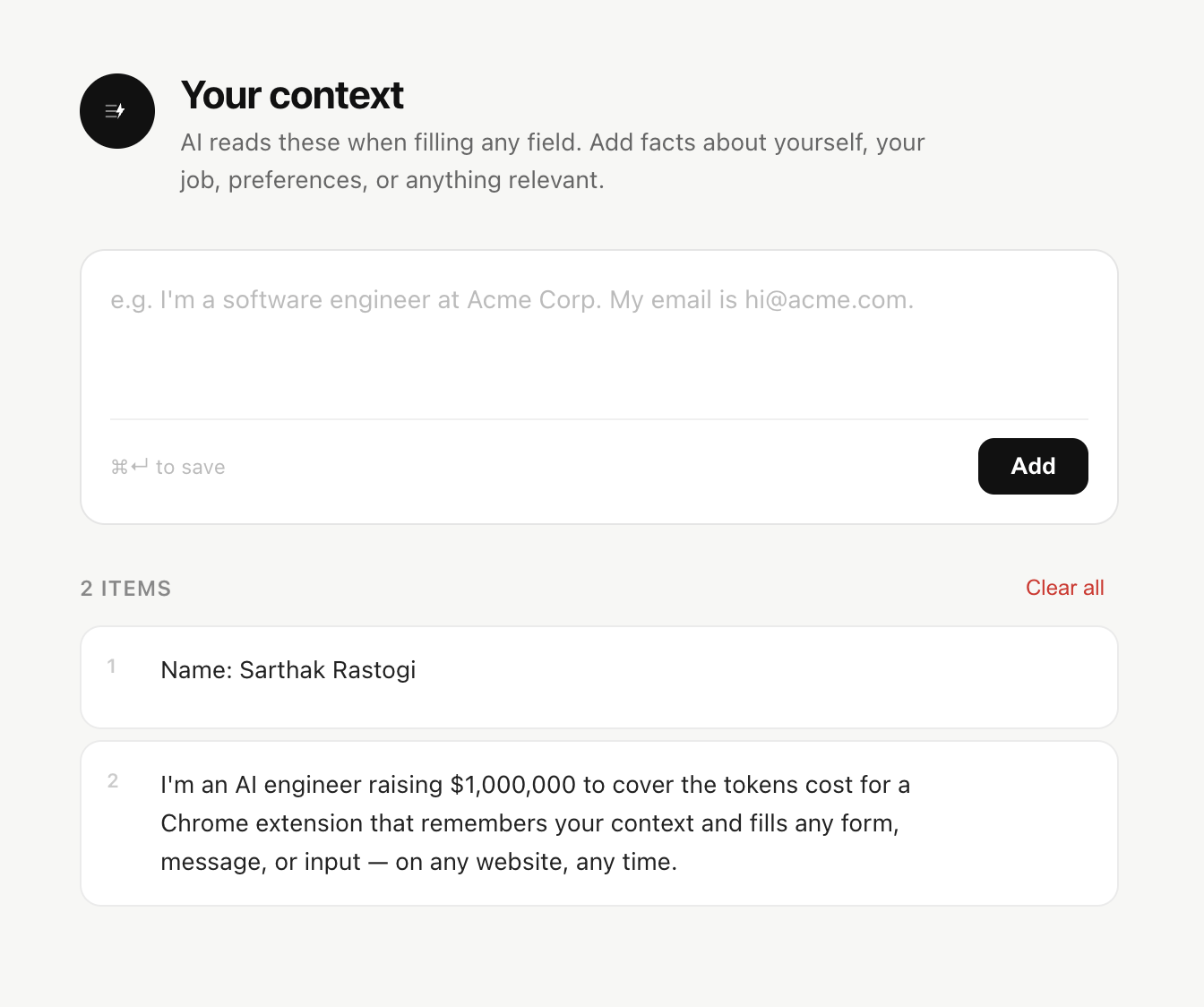
Respond to All Your Emails Faster with AI
The average professional spends over two hours a day on email. A significant portion of that time isn't reading—it's the mental effort of composing replies. Figuring out the right tone, the right level of detail, the right way to phrase a request or decline or follow-up. It adds up.
Liten is a Chrome extension that puts AI writing directly inside your email compose window. Here's how it changes the way you handle your inbox.
The Email Writing Problem
Most emails aren't hard in the abstract. You know what you want to say. The difficulty is in the execution—translating "I want to reschedule this meeting and still seem professional" into actual sentences that work.
Common email types that eat up time:
- Responding to client or customer inquiries
- Following up on outstanding items
- Declining requests diplomatically
- Writing cold or warm outreach emails
- Summarizing a meeting or project update
- Handling a complaint or difficult situation
Each requires a different tone, different level of formality, and different structure. And if you're writing dozens of these a day, the cognitive load is real.
How to Use Liten for Email
Step 1: Install the Extension
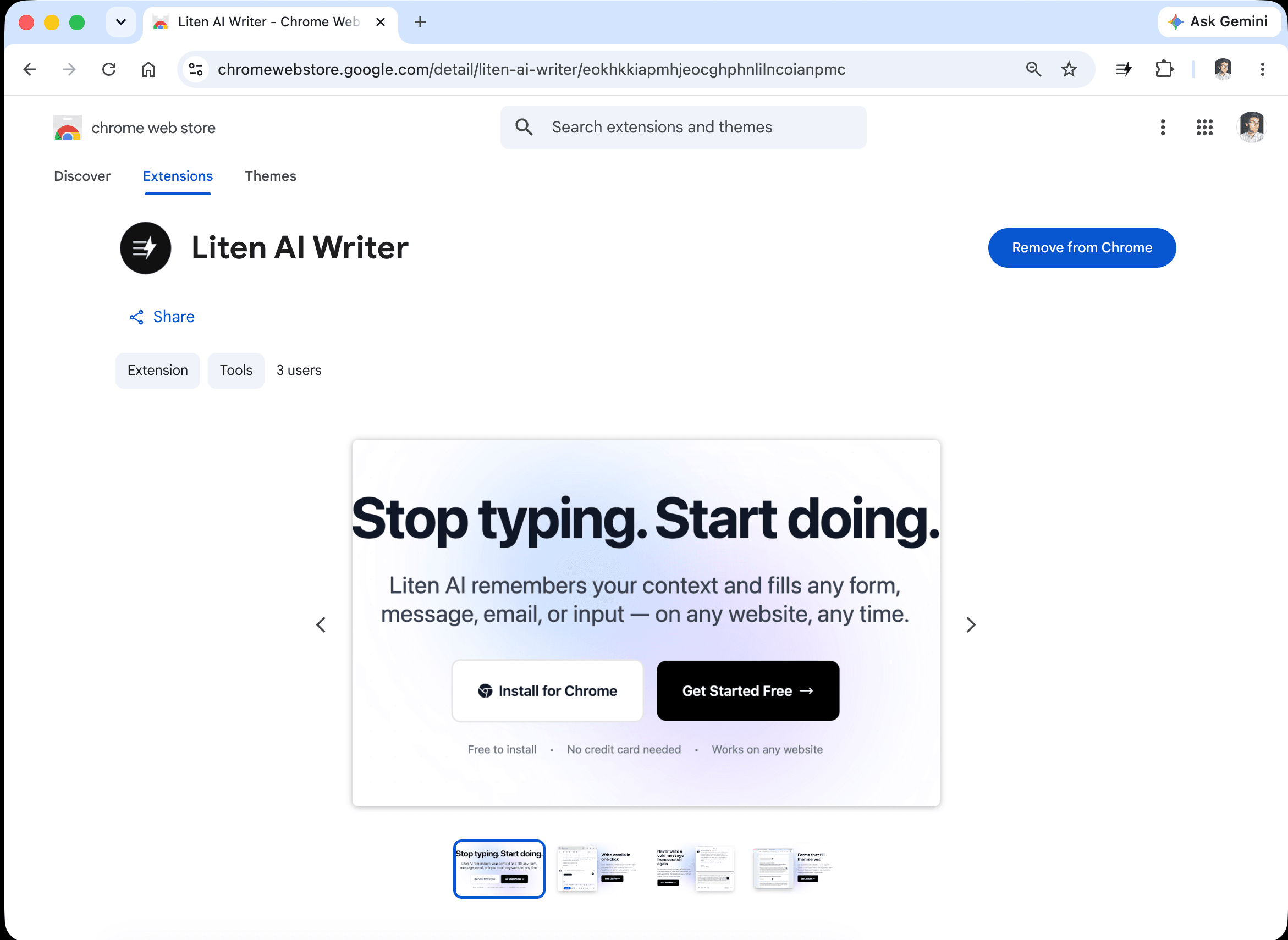
Head to the Liten listing on the Chrome Web Store and click Add to Chrome.
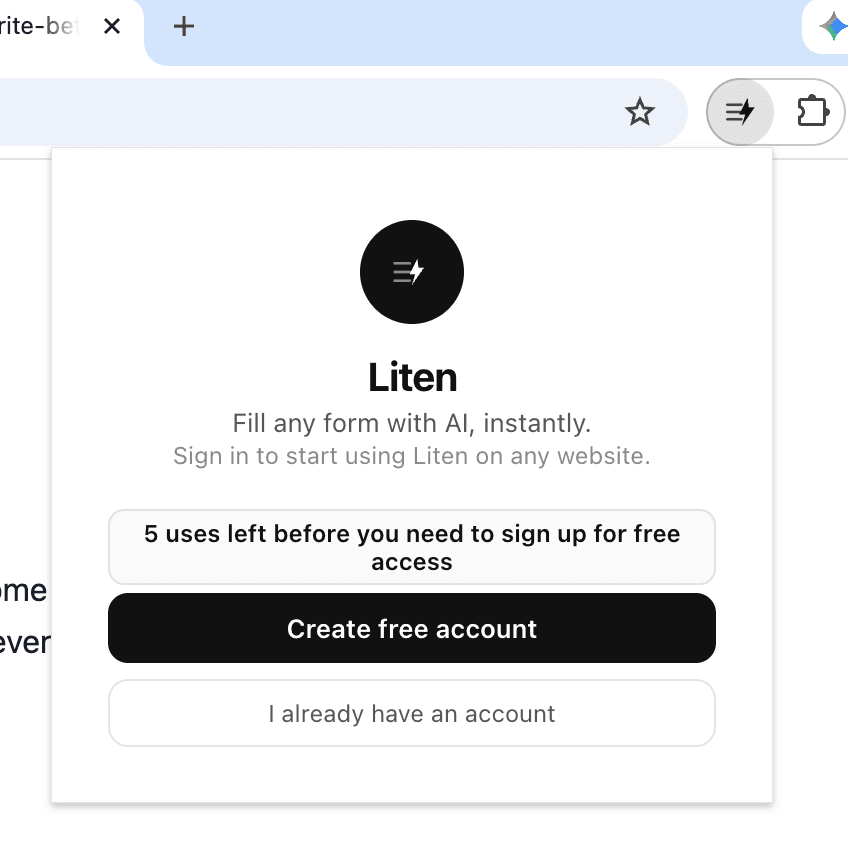
Step 2: Create a Free Account
Open the extension and create a free account. You can use it for free for as long as you want, with access to all core AI writing features.
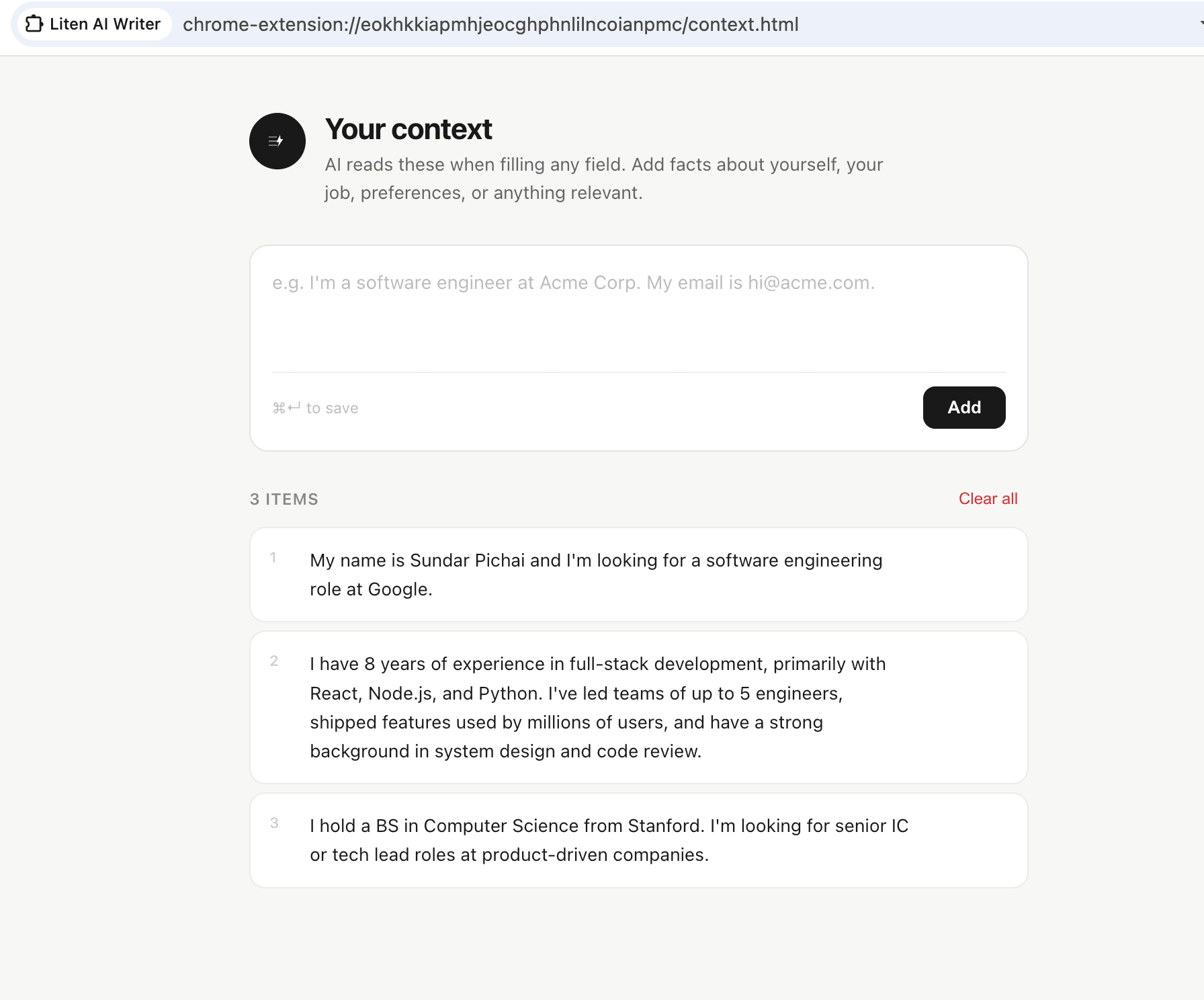
Step 3: Set Your Context
Open the extension popup and add your context. For email, useful context includes:
- Your name, role, and organization
- What you do and who you work with
- Your communication style preferences (formal/casual, concise/detailed)
- Common topics you email about
- Any standard information you include in responses
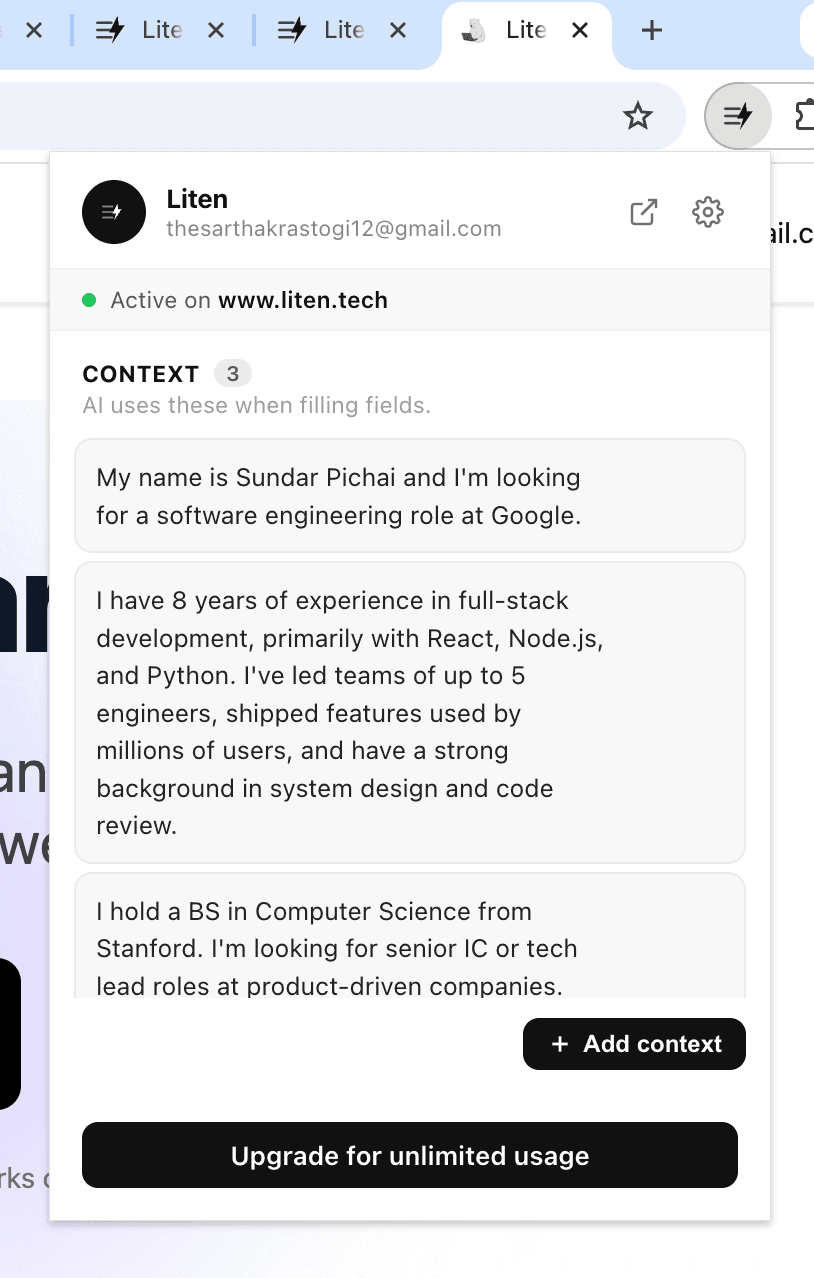
You can also click "Add Context" to manage everything in one place.
Step 4: Click Liten in Any Email Compose Window
Liten works in Gmail, Outlook on the web, and any other web-based email client. Open a compose or reply window, click the Liten logo in the text area, and a draft appears in seconds—based on your context.
You then edit, personalize, and send. The process that used to take five to ten minutes per email takes under two.
Practical Examples
Customer inquiry response: You receive a question about your services. Click Liten in the reply field, get a professional draft that covers your typical response, edit with any specifics, send.
Follow-up email: You had a meeting two weeks ago and want to follow up. Liten drafts a concise, professional follow-up based on your role and context. Add the specific details, send.
Decline a request: You need to say no without burning a relationship. Liten drafts a diplomatic decline that leaves the door open for future engagement.
Cold outreach: Liten drafts an opener grounded in your professional identity that doesn't sound like a template.
Internal update: Weekly updates to stakeholders, project status emails, team communications. Liten drafts a structured, clear update—you fill in the current specifics.
Tips for Better Email Drafts
Include your communication style in context. If you prefer brief, direct emails, say so. If your field expects formal language, include that. Liten adapts to whatever tone you specify.
Use Liten for the hardest emails first. Difficult messages—complaints, declines, sensitive conversations—benefit most from having a draft to work from.
Don't skip the review step. AI drafts are fast but not final. Always read what Liten generates and make it your own before sending.
The Result: More Emails, Less Effort
Liten doesn't write your emails for you—it writes the first version so you can focus on making them good. You stop avoiding the emails you've been putting off, respond the same day instead of letting them pile up, and your inbox stops feeling like a weight.
Install Liten for Chrome and see how much faster your inbox moves.