Respond to all your LinkedIn Messages with AI (Without Sounding Like a Bot)
LinkedIn messages have a reputation problem. Most of them are templated, impersonal, and easy to ignore. Whether you're reaching out to a recruiter, responding to a connection request, or following up after a conversation—the pressure to write something thoughtful every single time adds up fast.
Liten is a Chrome extension that generates LinkedIn messages right inside the message box, using your professional background as the foundation. Here's how to use it well.
Why LinkedIn Messages Are Hard to Write
The challenge isn't knowing what you want to say—it's translating that into something that sounds genuine and professional without spending 10 minutes on a single message.
Common scenarios that trip people up:
- Responding to a recruiter reaching out about a role
- Messaging someone after meeting them at an event
- Following up on a conversation that went cold
- Reaching out to a potential collaborator or mentor
- Thanking someone for an introduction
Each requires a slightly different tone, a different emphasis, and some knowledge of who you are professionally. Most people either write the same vague message every time or avoid sending anything at all.
How Liten Works on LinkedIn
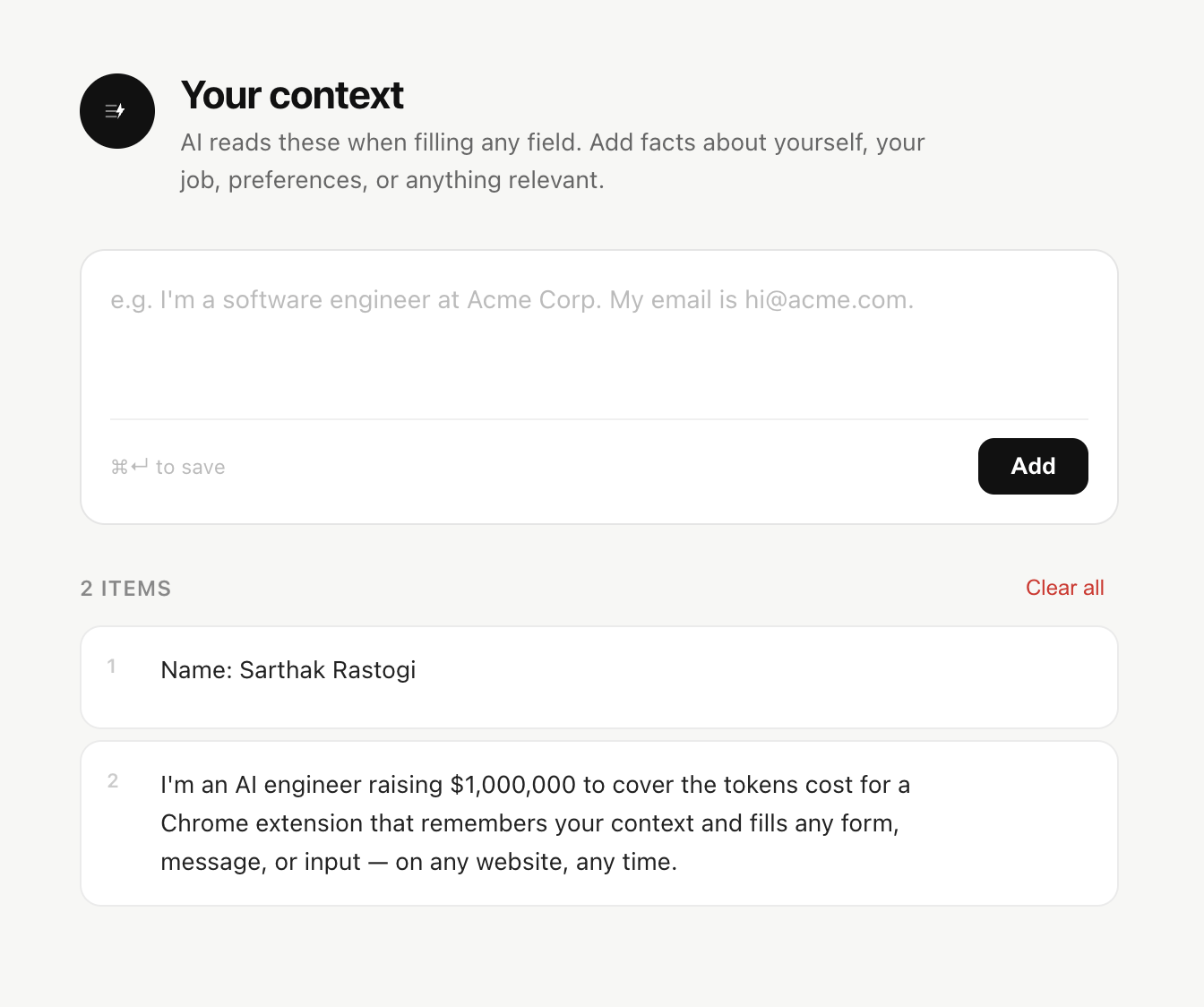
Step 1: Install the Extension and Set Your Context
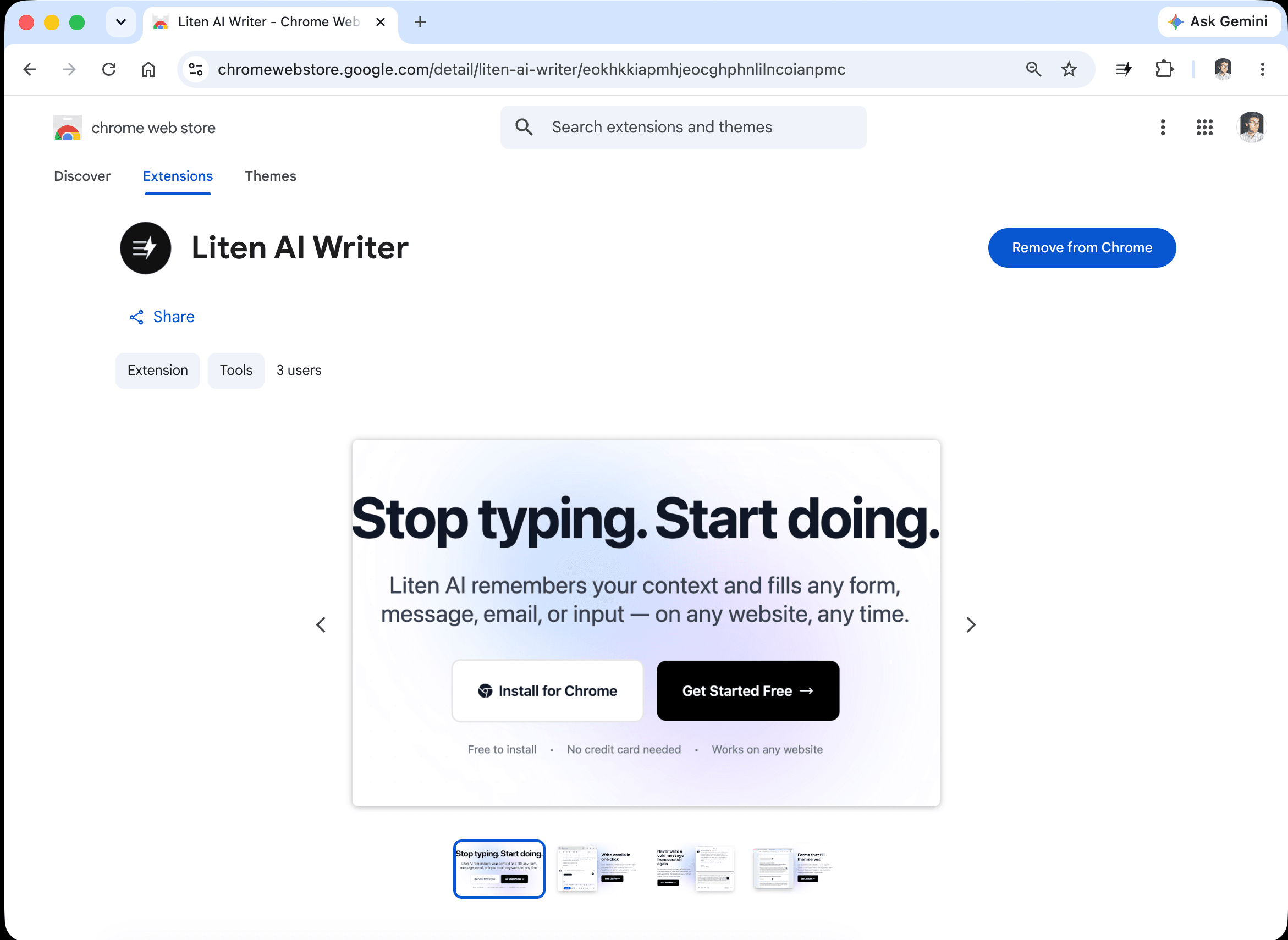
Install Liten from the Chrome Web Store and create an account.
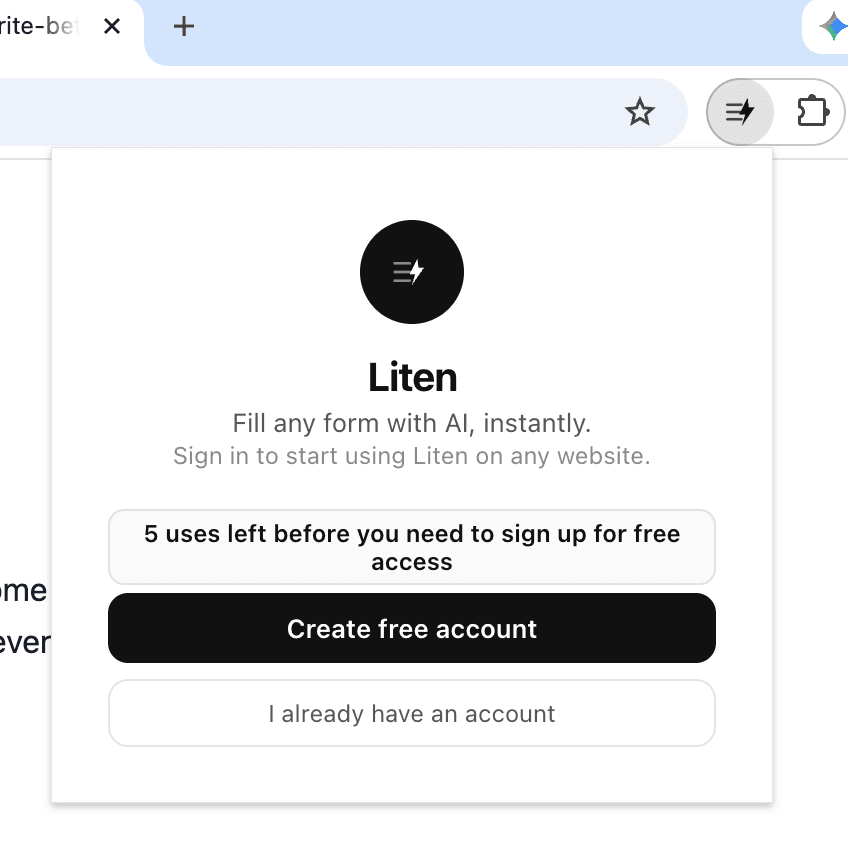
Step 2: Create a Free Account
Open the extension and create a free account to get started. You can use it for free for as long as you want, and it gives you access to the core AI writing features. You can upgrade later when you want, for unlimited use.
Step 3: Set Your Professional Context
Then open the extension popup and add your context. This is the information Liten uses when generating responses—think of it as briefing your AI writing assistant.
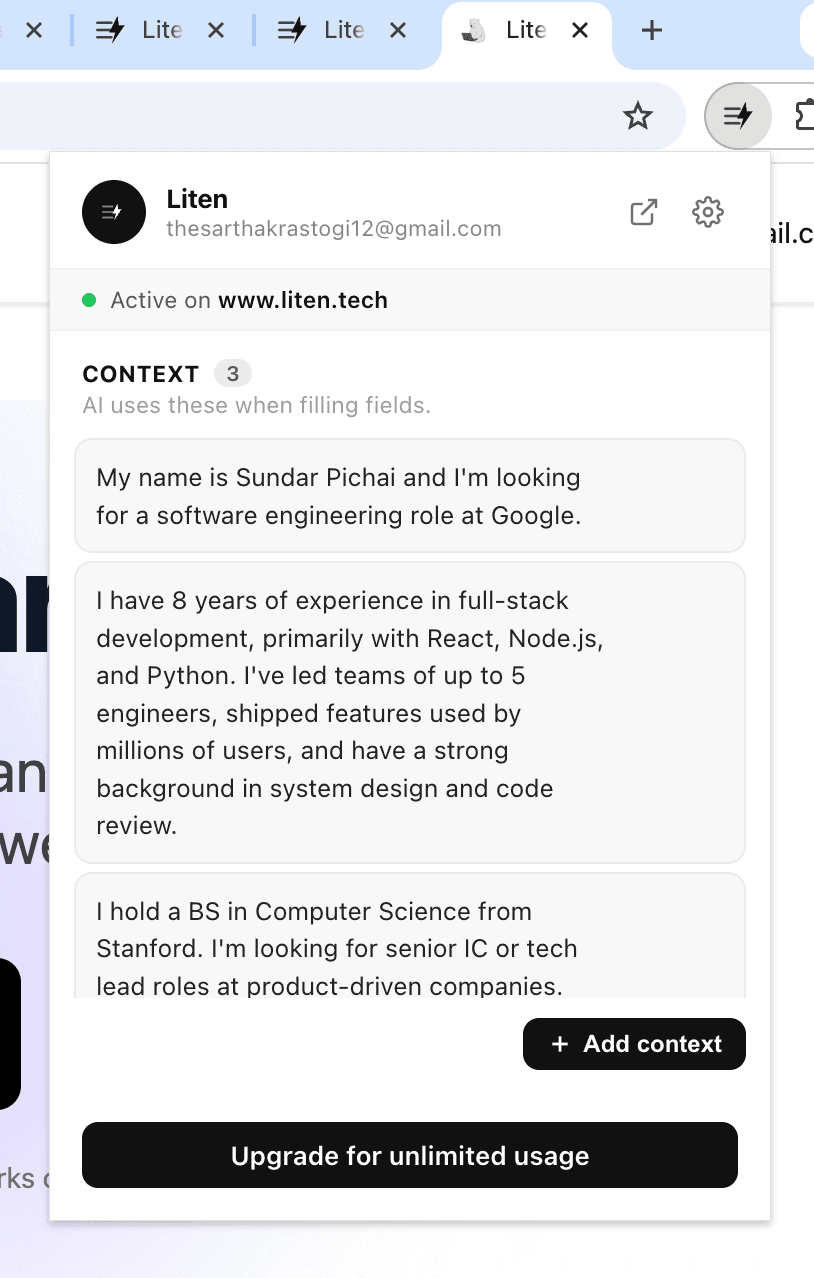
You can also click "Add Context" to add, edit, and organize everything in one place.
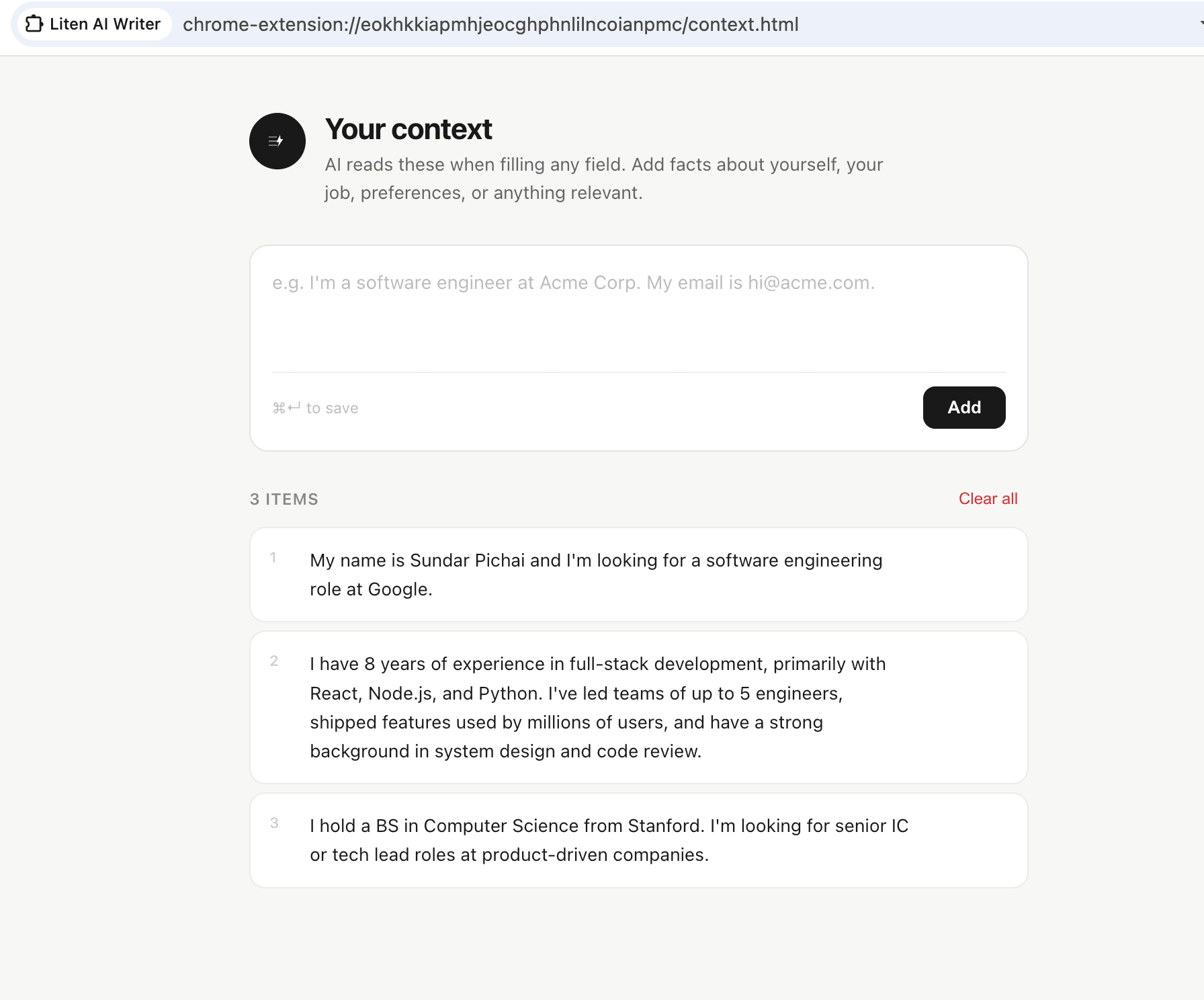
Good context to include:
- A summary of your work experience and key roles
- Your top skills and areas of expertise
- Career goals and what you're looking for in your next role
- Achievements and notable projects you want to highlight
- Your educational background
- Anything specific to the types of connections you're looking for on LinkedIn
Step 3: Let Liten AI Write For You
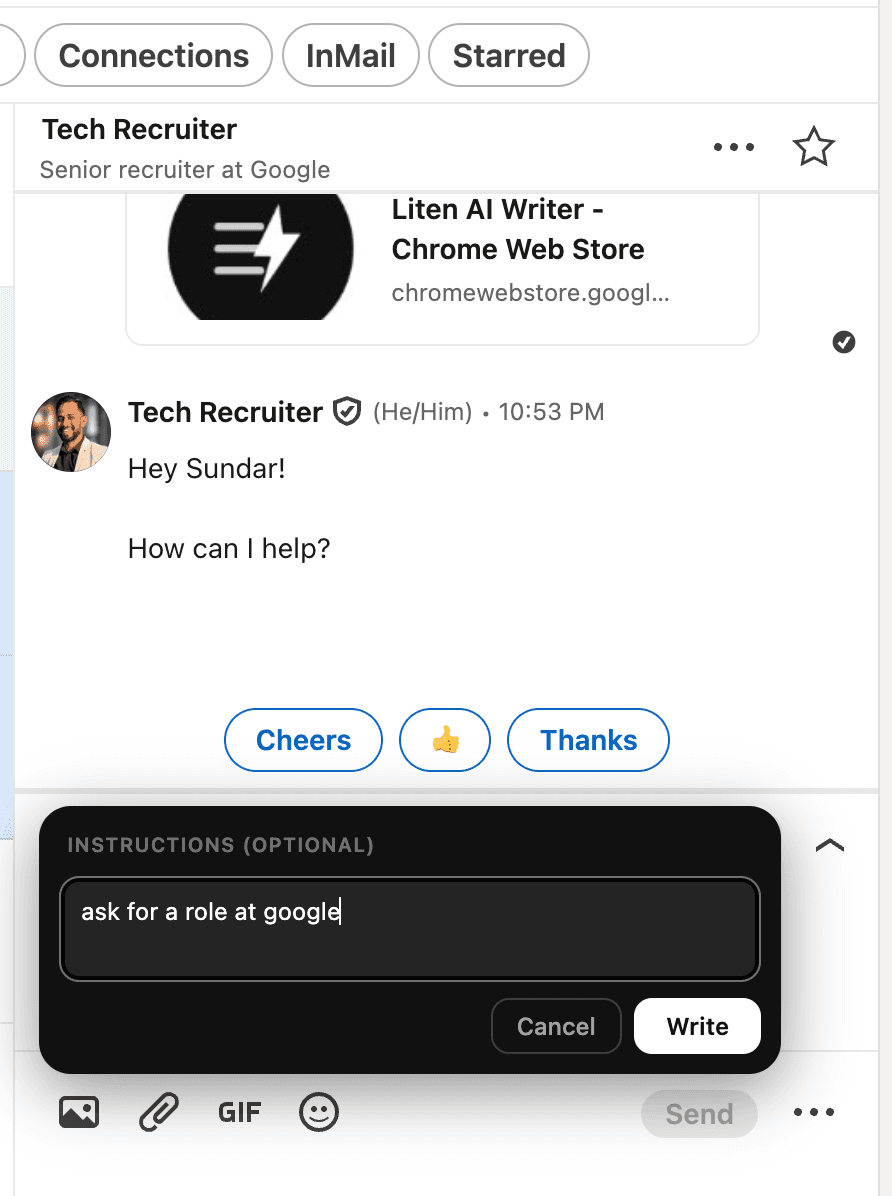
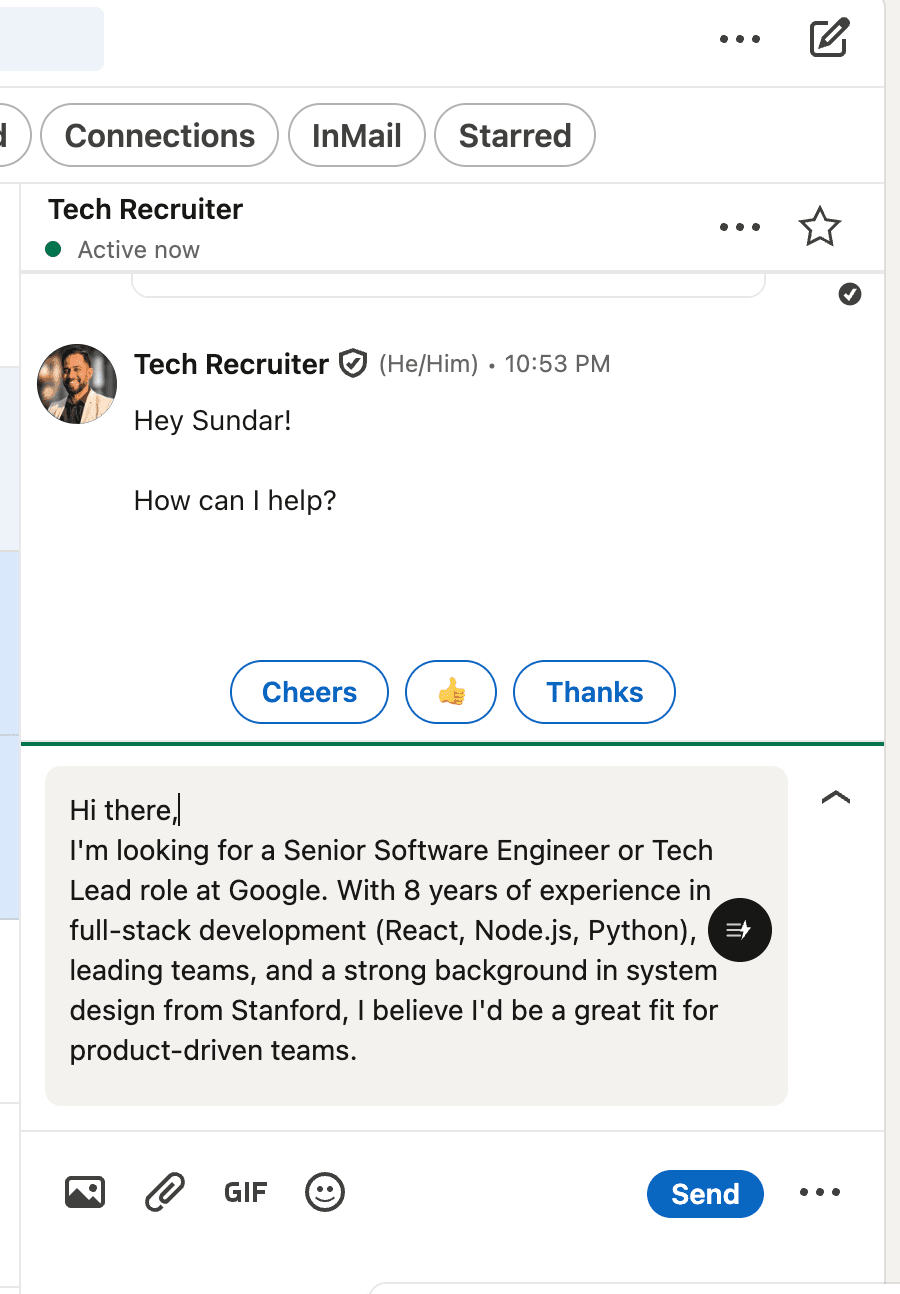
Liten adds an AI writing button directly to LinkedIn's message input fields. When you're in a conversation or composing a new message, the Liten logo appears in the text box. Click it, and it generates a message draft based on your context.
Using Liten for Different LinkedIn Scenarios
Responding to recruiters: When a recruiter messages you about an opportunity, click the Liten button to draft a reply. If you're interested, Liten will generate an engaged, professional response based on your background. If you're not, it can draft a polite decline that leaves the door open.
Following up after a connection: After connecting with someone, Liten can help you draft that first message that goes beyond "thanks for connecting"—referencing your background and what you might have in common.
Cold outreach: Reaching out to someone you don't know yet is one of the hardest messages to write. Liten generates an opener that's rooted in your professional identity and relevant to the kind of connection you're looking for.
Responding to messages in threads: Even mid-conversation, Liten can help you draft replies that keep things moving without spending time overthinking every sentence.
The Key: Context Makes It Personal
What separates Liten-generated messages from generic AI outputs is that they're grounded in your information. A message that references your actual background, your current work, or your genuine professional goals reads completely differently from a template.
This is why the context step matters. Generic context produces generic messages. Specific, well-written context produces messages that actually sound like you.
Tips for Better LinkedIn Messages with Liten
Update context for different networking goals. If you're actively job hunting, make that clear in your context. If you're looking for collaborators on a specific project, mention it. Liten generates more relevant messages when it knows your current focus.
Always review and add specifics. Liten's draft is a strong starting point. Add the person's name, reference something specific about their work, or tailor the message to the conversation—that's what makes it land.
Use it for longer messages too. Liten isn't just for short replies. If you're writing a longer note introducing yourself or pitching a collaboration, it can draft the whole thing and you can edit from there.
Don't over-automate. LinkedIn works best when connections feel real. Use Liten to eliminate the blank-page problem, but put yourself into every message before you send it.
From Time-Consuming to Effortless
The best LinkedIn connections start with a good first message. Liten removes the friction of writing that message—so you send more of them, more consistently, without sacrificing quality.
Get Liten for Chrome and start writing better LinkedIn messages today.