How Liten Works: AI Writing in Any Text Field, Without Leaving the Page
Most AI writing tools work the same way: you open a new tab, type a prompt, copy the output, switch back to what you were doing, and paste. It works, but it breaks your flow every single time.
Liten is built differently. The AI writing button lives inside the text field itself—wherever you're working, on any website, without switching tabs or copying anything. Here's how it all works.
The Core Idea
Every website has text inputs—form fields, message boxes, text areas, dropdowns. You use them dozens of times a day. Liten adds an AI button directly into those fields so that generating content is a one-click action, not a multi-step context switch.
The AI generates content based on your context—information you've provided about yourself, your work, or your goals—so the output is relevant to you, not just relevant to the field.
Installing Liten
Liten is a Chrome extension, available on the Chrome Web Store.
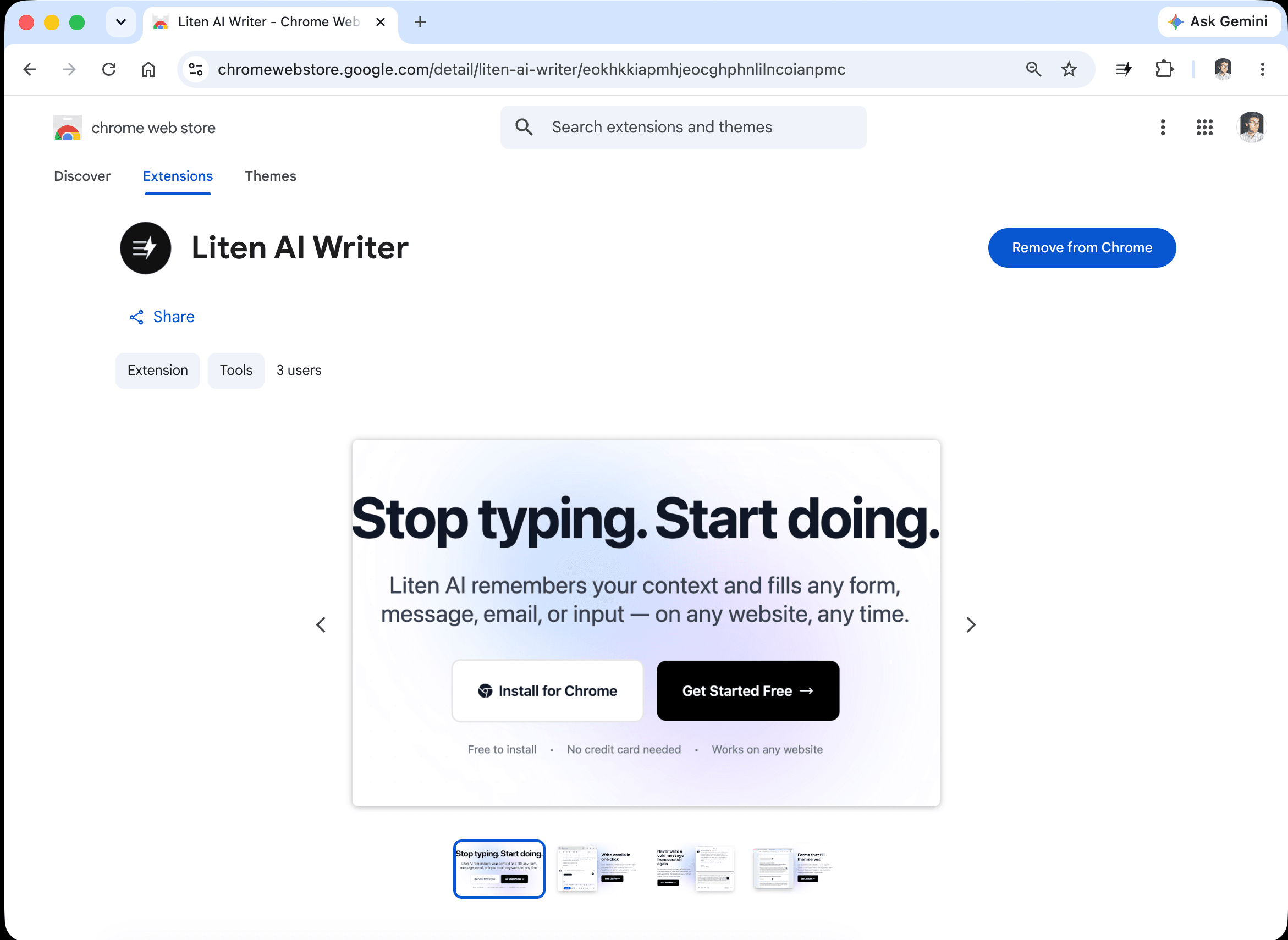
Install it like any other Chrome extension—one click, no configuration required to get started.
The Extension Popup
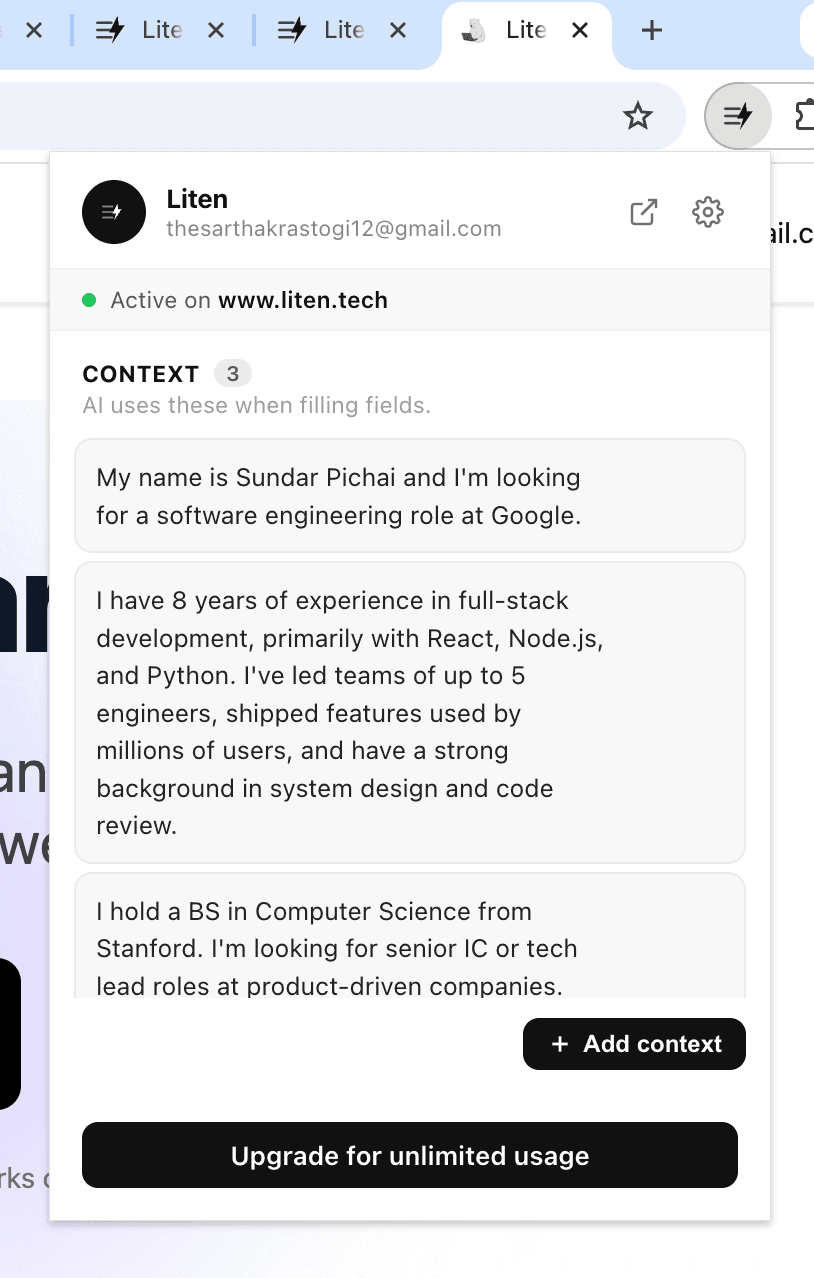
Once installed, the Liten icon lives in your Chrome toolbar. Click it to open the popup.
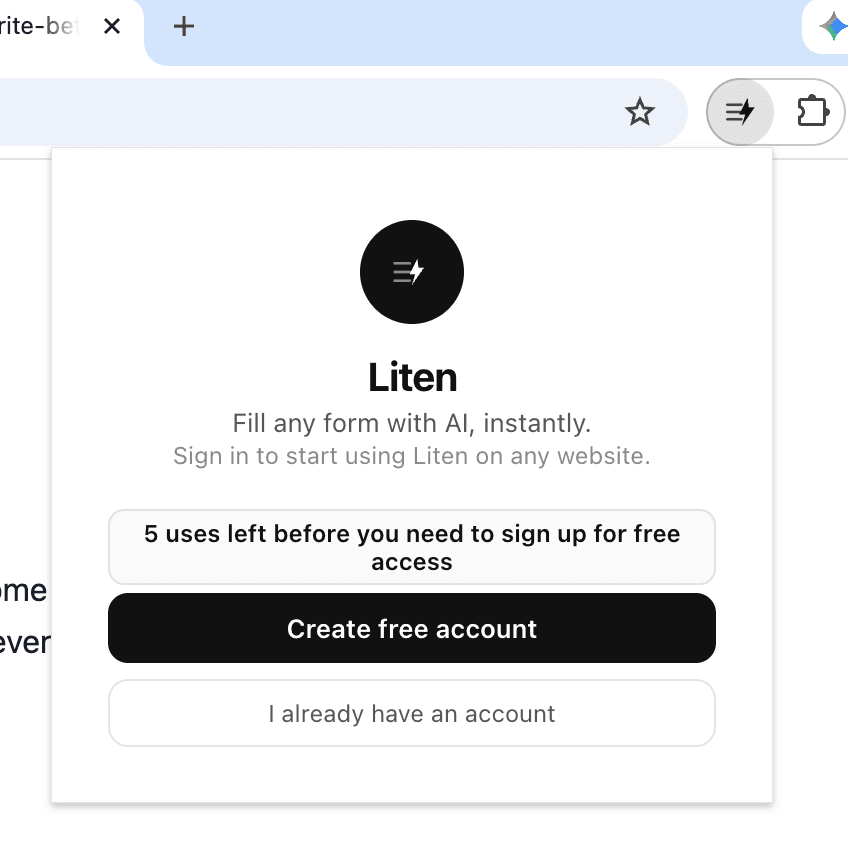
Before logging in, the popup gives you the option to sign in or create an account.
After logging in, you can see your context, manage your account, and access quick settings.
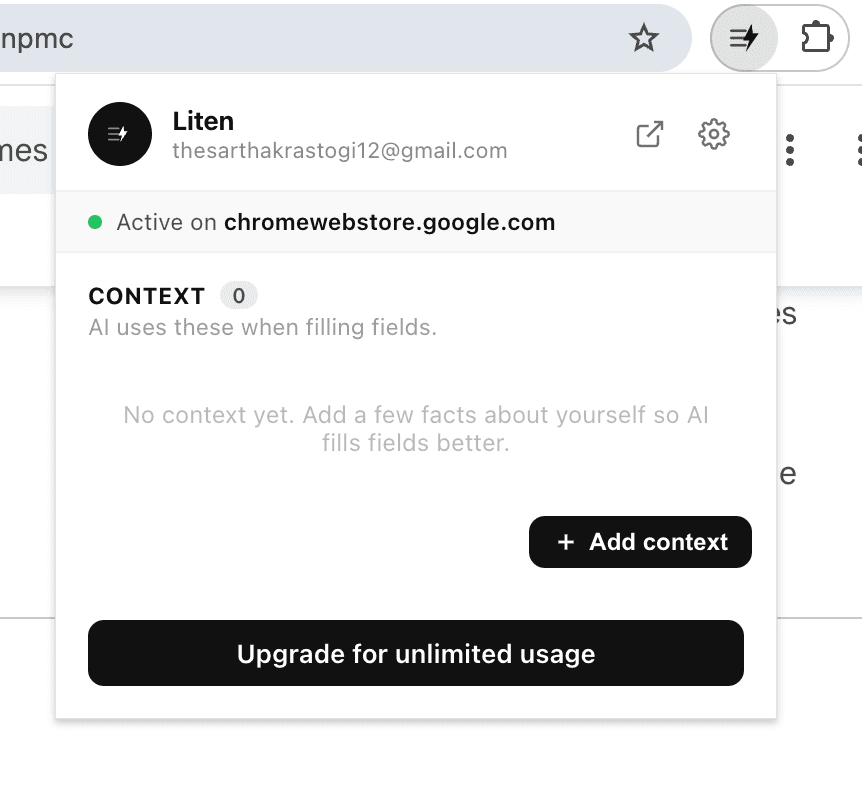
With context set, the popup shows what context is active and lets you add or edit it.
How the AI Button Works
When you click into any text input on any website in Chrome, Liten detects the field and displays a small logo icon inside or adjacent to it. Click that icon, and the extension:
- Reads the context of the field (the label, placeholder text, and surrounding page content to understand what's being asked)
- Sends a request to the Liten API at
liten.tech/api/write - The API uses Gemini to generate a relevant response based on your context and the field context
- The generated text appears in the field
The whole process takes a few seconds. The text appears directly in the field—ready to review, edit, and use.
Your Context: The Key to Relevant Output
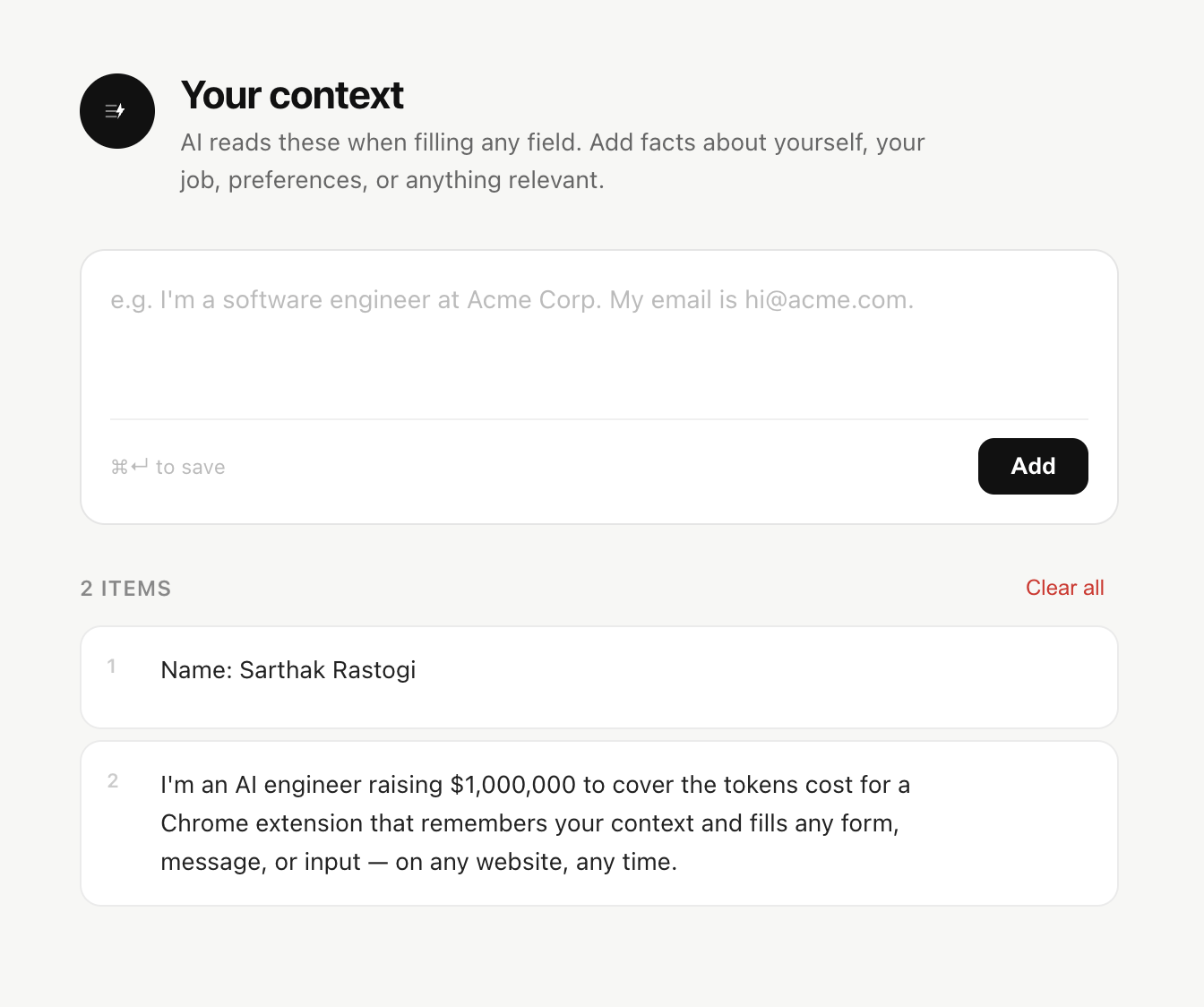
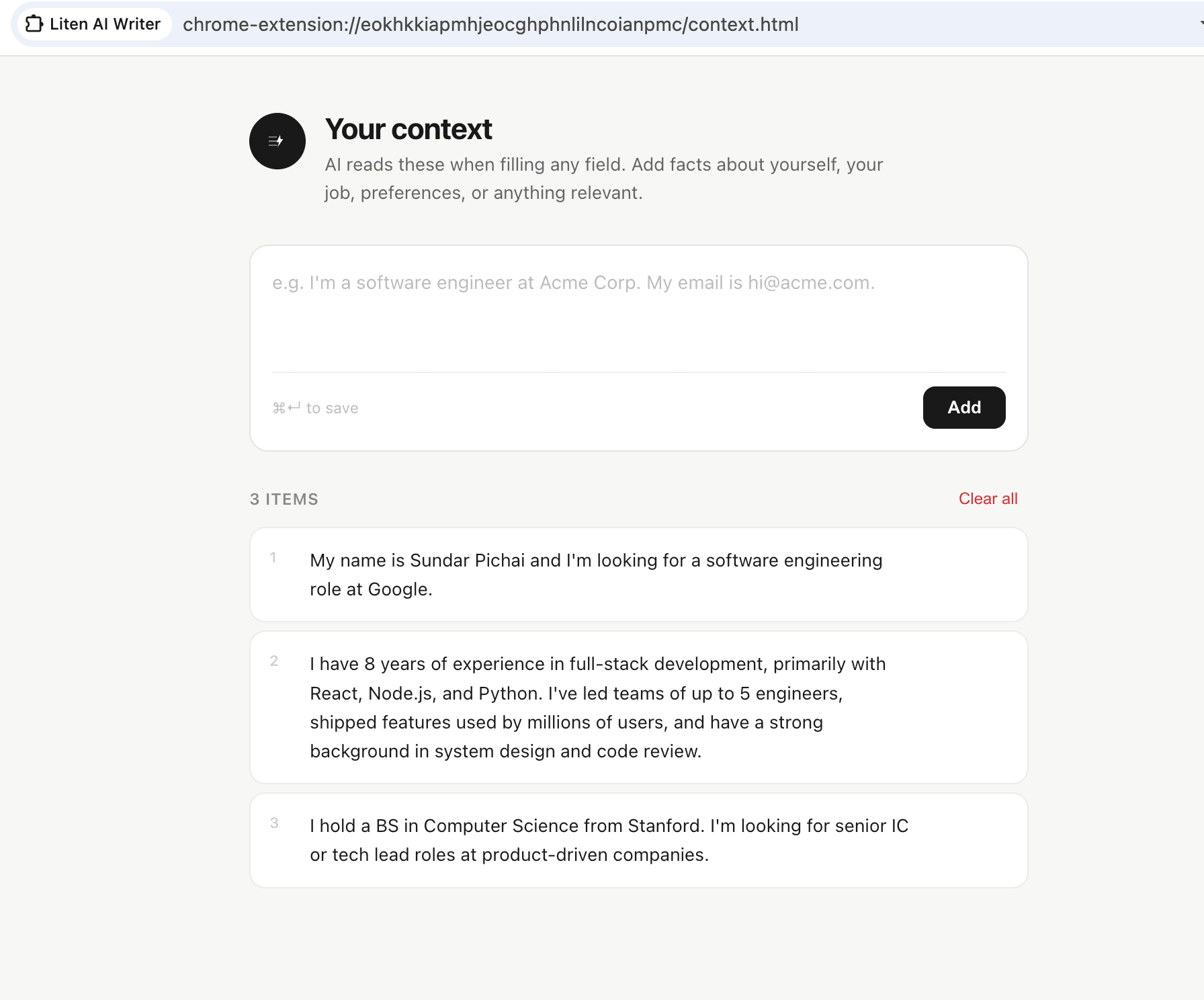
The AI can only generate useful content if it knows something about you. That's what your Liten context is for.
Context is the information you provide about who you are—your professional background, your goals, your experience, whatever's relevant to the kinds of text you need to generate. When you click the Liten button, this context is included in the API request so the generated response is grounded in your specific background, not generic filler.
You can add and manage context from the extension popup or from the full Context page on liten.tech.
Adding Context from Any Page
There's also a shortcut: if you're on a web page and see text that would be useful context—your LinkedIn bio, a job description, a company's About page—you can select it and add it to your Liten context directly without leaving the page.
Context Storage and Privacy
Your context is encrypted regardless of where it's stored. You choose between:
- Liten cloud storage: Your context is available across all your devices wherever you're logged in.
- Local storage: Your context stays on your device only.
The Liten API never stores the content of the fields you fill—it only uses your context at generation time to produce the output.
What Liten Works With
Liten works on any website in Chrome with any standard text input, including:
- Web-based email clients (Gmail, Outlook on the web, etc.)
- LinkedIn and other social platforms
- Job application portals and career sites
- Google Forms and other form builders
- CRM platforms and helpdesk tools
- Academic application systems
- Any other website with text fields


What It Doesn't Do
Liten doesn't read everything on your screen. It only activates when you click the button in a text field. It doesn't log your browsing activity or store your form submissions. The extension is focused specifically on helping you write—nothing more.
Getting Started
- Install Liten from the Chrome Web Store
- Create a free account
- Add your context in the popup or at liten.tech
- Navigate to any website and click the Liten button in any text field
That's all it takes. The AI writing button will be everywhere you need it from that point on.