Getting Started with Liten: Your First 10 Minutes
Liten is a Chrome extension that puts AI writing inside every text field on every website. This is your quick-start guide—from installation to your first AI-generated content in 10 minutes.
Step 1: Install the Extension
Head to the Liten listing on the Chrome Web Store and click Add to Chrome.
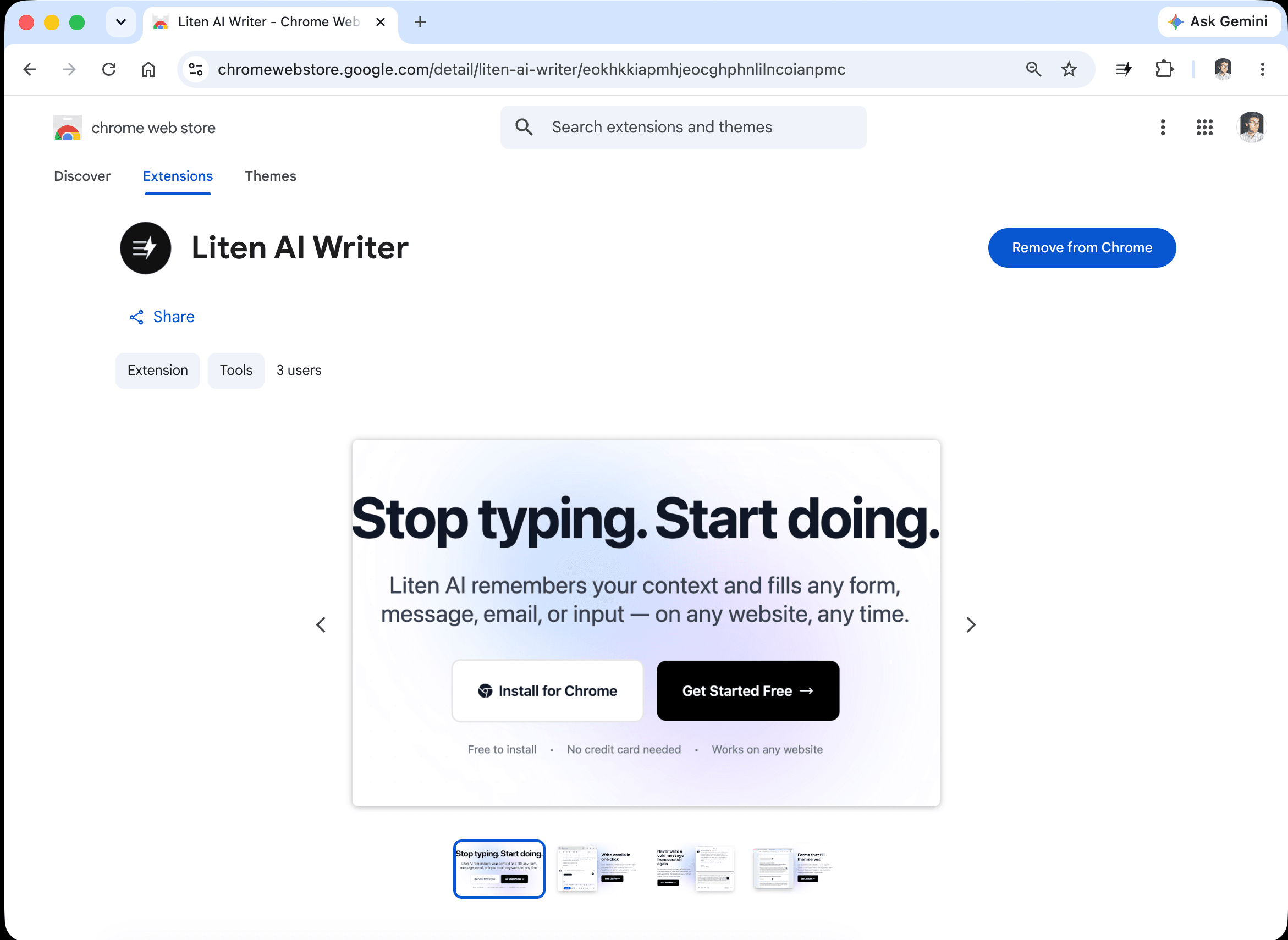
Confirm the installation when prompted. Once installed, the Liten icon will appear in your Chrome toolbar.
Step 2: Create a Free Account
Click the Liten icon in your toolbar to open the extension popup.
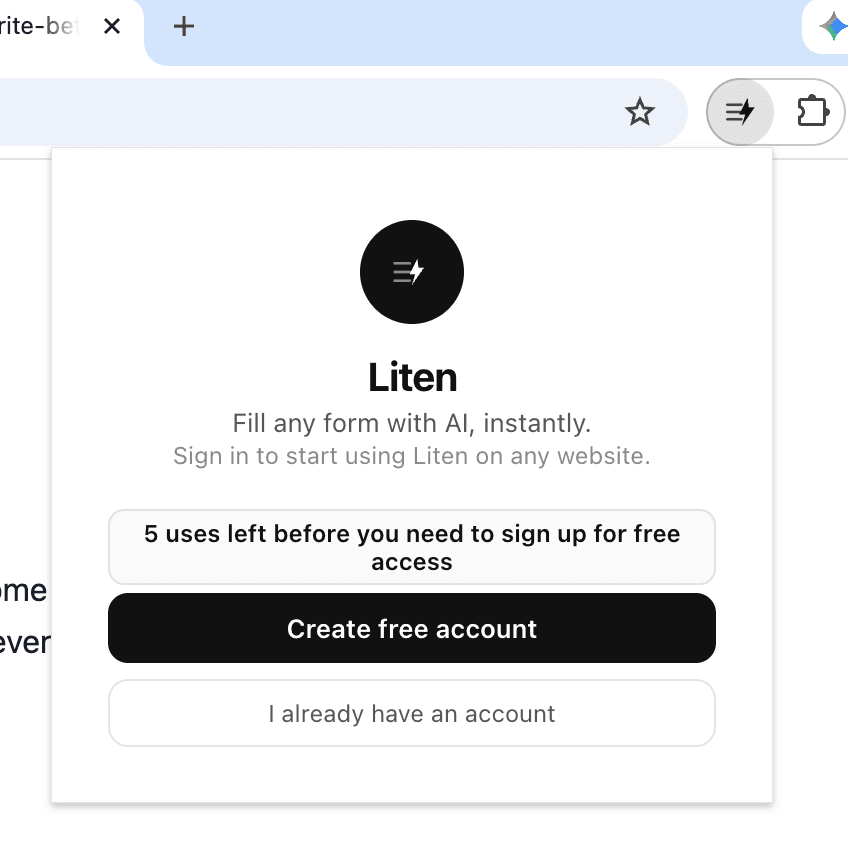
Create a free account—this is what connects the extension to your context and the Liten API. You can use it for free for as long as you want, and upgrade later for unlimited use.
After logging in, the popup will show your account and the tools you need to get started.
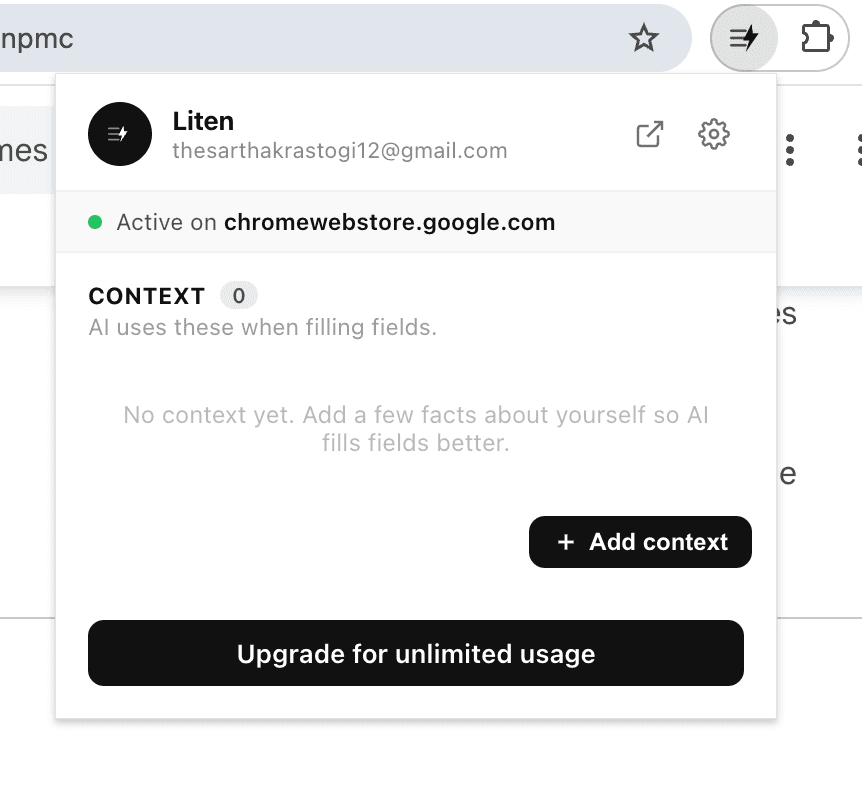
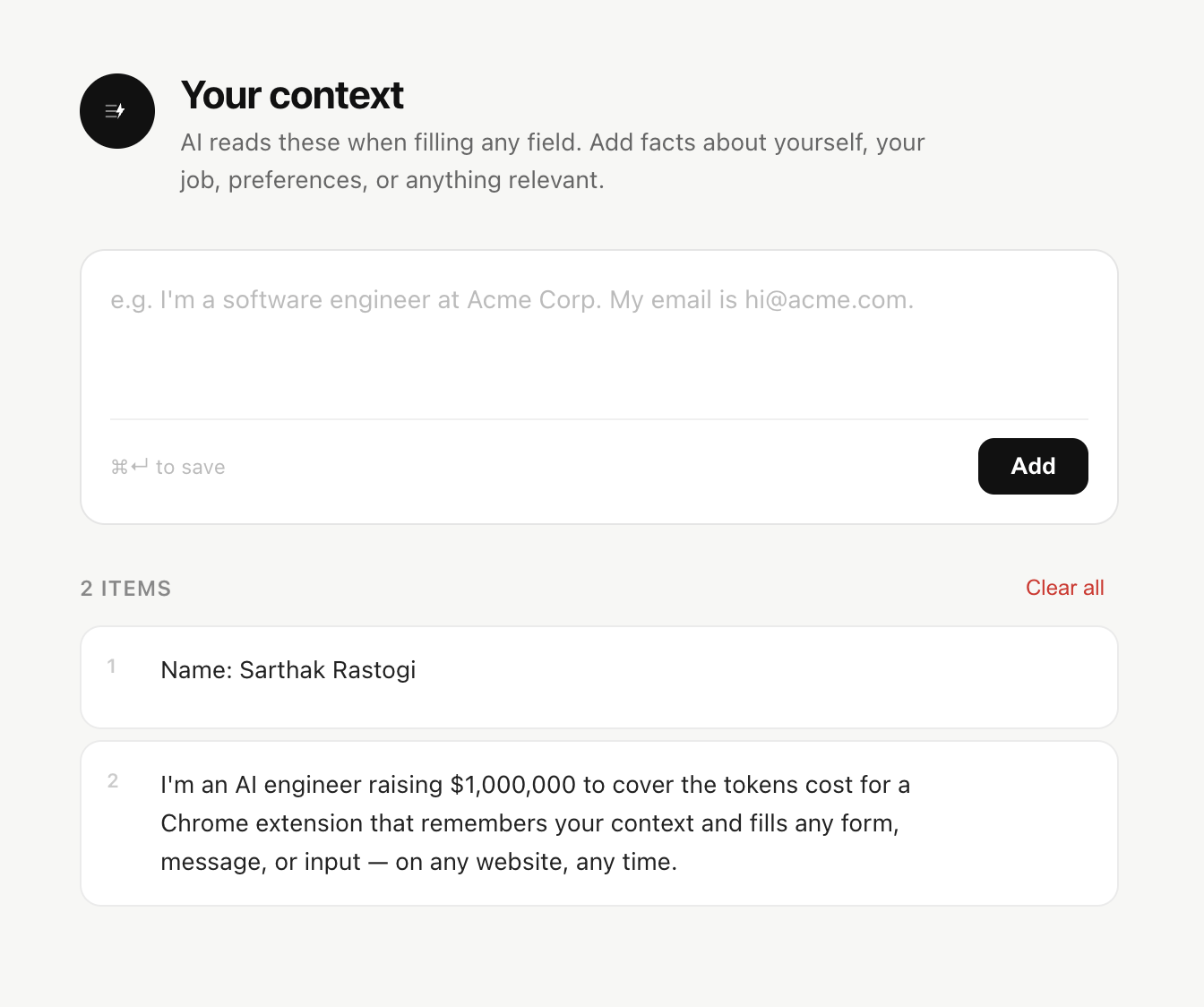
Step 3: Add Your Context
This is the most important step. Liten generates content based on your context—information about who you are and what you do. The better your context, the more relevant and useful the generated content will be.
You can add context directly in the popup, or click "Add Context" for a better editing experience.
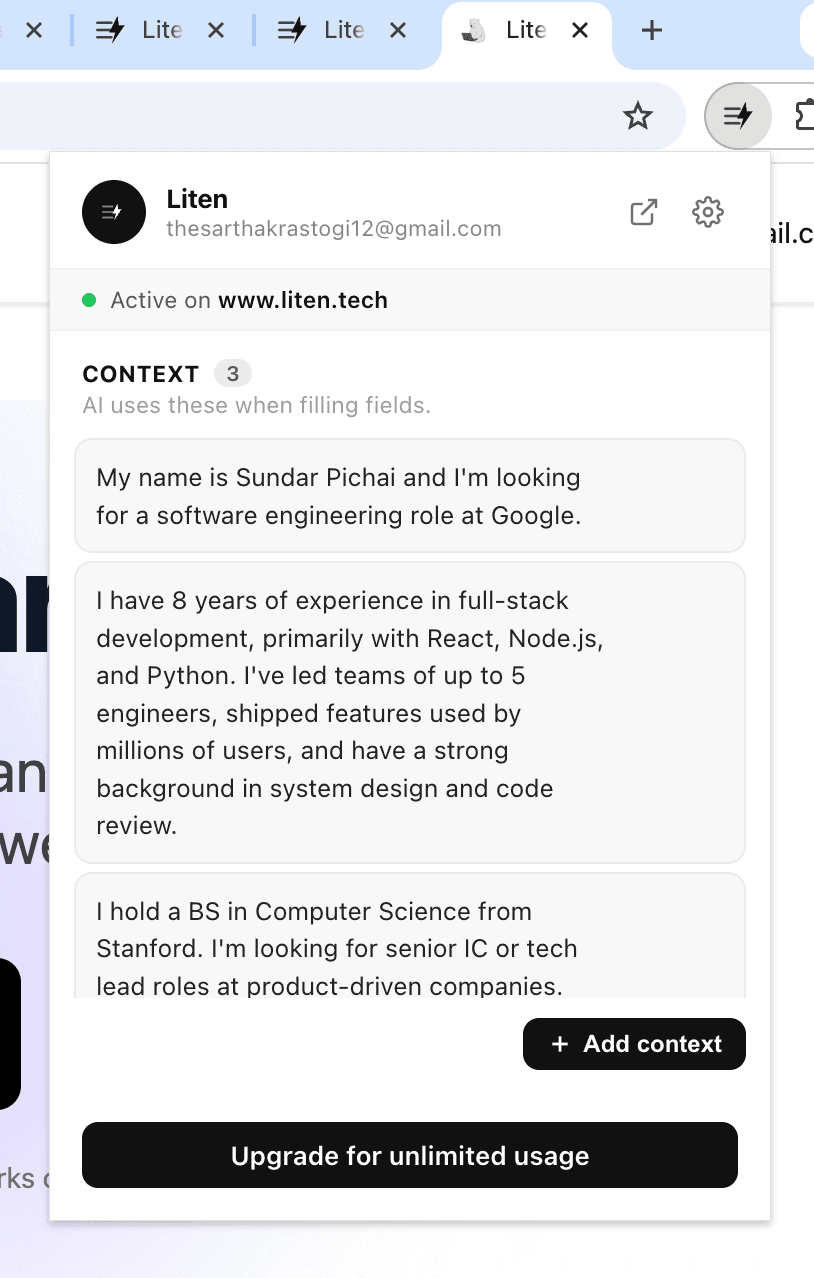
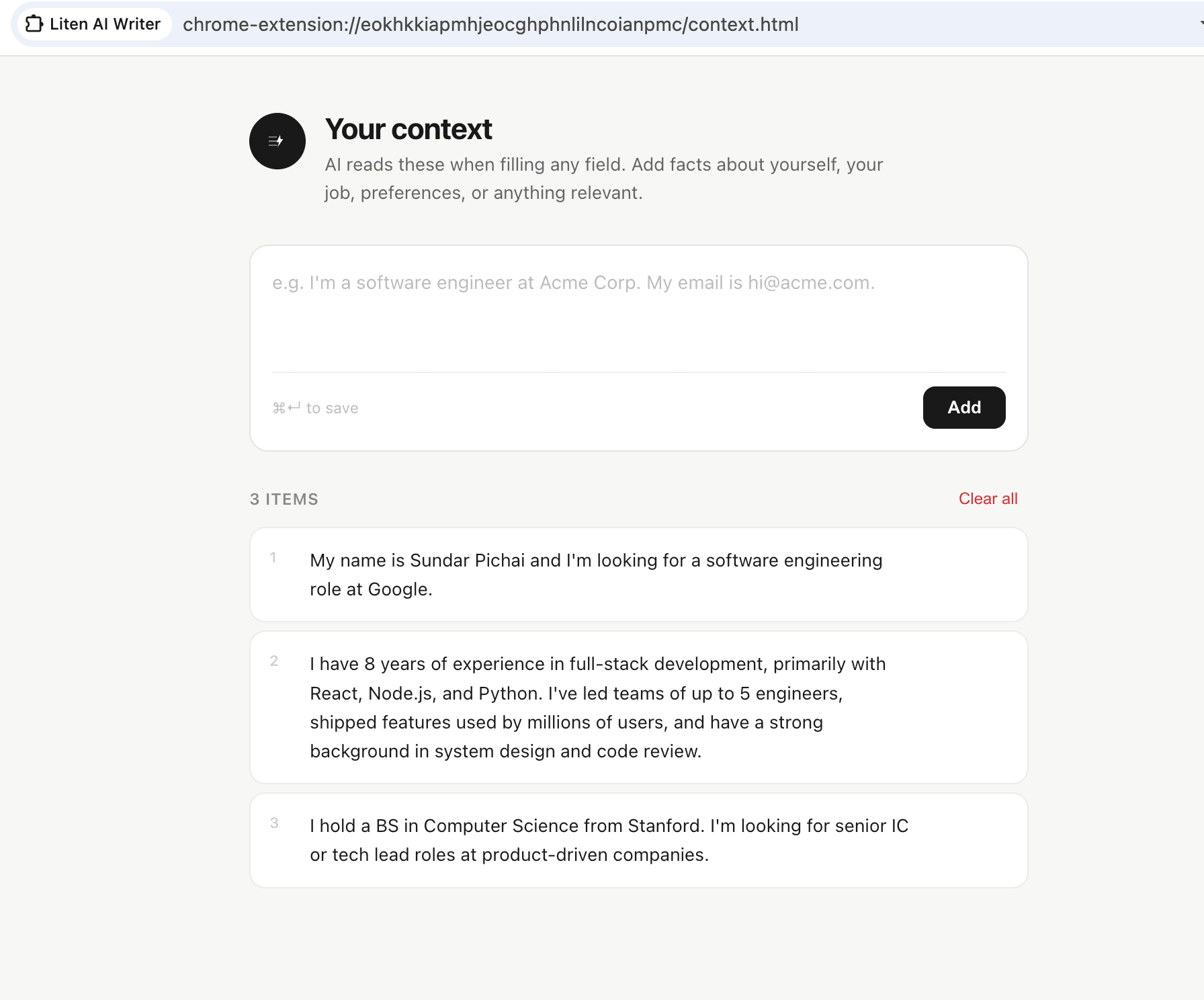
What to Include in Your Context
Think about why you're using Liten and what kinds of text you'll be generating most often:
For job seekers: Your work history, key roles, and accomplishments. Skills and areas of expertise. Career goals and what you're looking for. Education and certifications.
For professionals and knowledge workers: Your current role and organization. What you work on and who you work with. Your communication style and typical topics.
For business owners and freelancers: Your services and target clients. Your background and experience. Key differentiators and your process.
For researchers and academics: Your field and research focus. Current projects and affiliations. Methodology and approach. Publications or notable work.
There's no required format—just write what's relevant in plain English. You can always edit and expand it later. Your context is encrypted whether you store it on the Liten cloud or locally on your device.
Step 4: Try It on a Real Page
Navigate to any website with a text input—your email client, a form, LinkedIn, a job application, anywhere. Click into a text field, and you'll see the small Liten logo appear.
Click the Liten logo. Within a few seconds, AI-generated content will appear in the field, drawn from your context.
Step 5: Review and Edit
The generated text is a draft, not a final output. Read through it and make any edits—add specific details, adjust the tone, or trim it to fit the space. This is almost always faster than writing from scratch, which is the whole point.
Tips for Your First Week
Start with the writing you dread most. Liten is most valuable for the text inputs you've been avoiding. Cold emails, long application forms, professional bios—try it there first.
Add context as you go. You don't need the perfect context document on day one. Start with a few paragraphs and add more as you discover what Liten needs to generate better responses.
Use the "Select to Add" feature. If you see text on any page that would be useful context—a job description, a company's About page, your own LinkedIn bio—you can select it and add it directly to your context without leaving the page.
It works everywhere. If there's a text field in Chrome, Liten works in it. Google Forms, web-based email clients, CRMs, social platforms, job boards, application portals—all of them.
You're Ready
That's it. Liten is set up, your context is in place, and the AI button will appear wherever you need to write something. Visit liten.tech to manage your account and update your context anytime.