How Nonprofits and Researchers Can Use AI to Write Grant Applications Faster
Grant writing is one of the most time-intensive parts of running a nonprofit or research program. You're often answering the same questions across dozens of applications—about your mission, your methodology, your qualifications, your outcomes—while tailoring each response to a different funder's priorities.
Liten is a Chrome extension that brings AI writing directly into grant application forms. Here's how it can help.
The Grant Application Problem
Most grant applications are online forms that ask structured questions requiring detailed, specific answers:
- Describe your organization's mission and impact
- What is the need or problem you are addressing?
- Describe your project methodology
- What are your measurable outcomes?
- Describe your team's qualifications
- How will funds be used?
Each answer needs to be well-written, evidence-based, and tailored to the funder. Copy-pasting from previous applications rarely works—the question phrasing is different, the character limits are different, and funders can tell when they're reading a recycled response.
How to Use Liten for Grant Applications
Step 1: Install the Extension
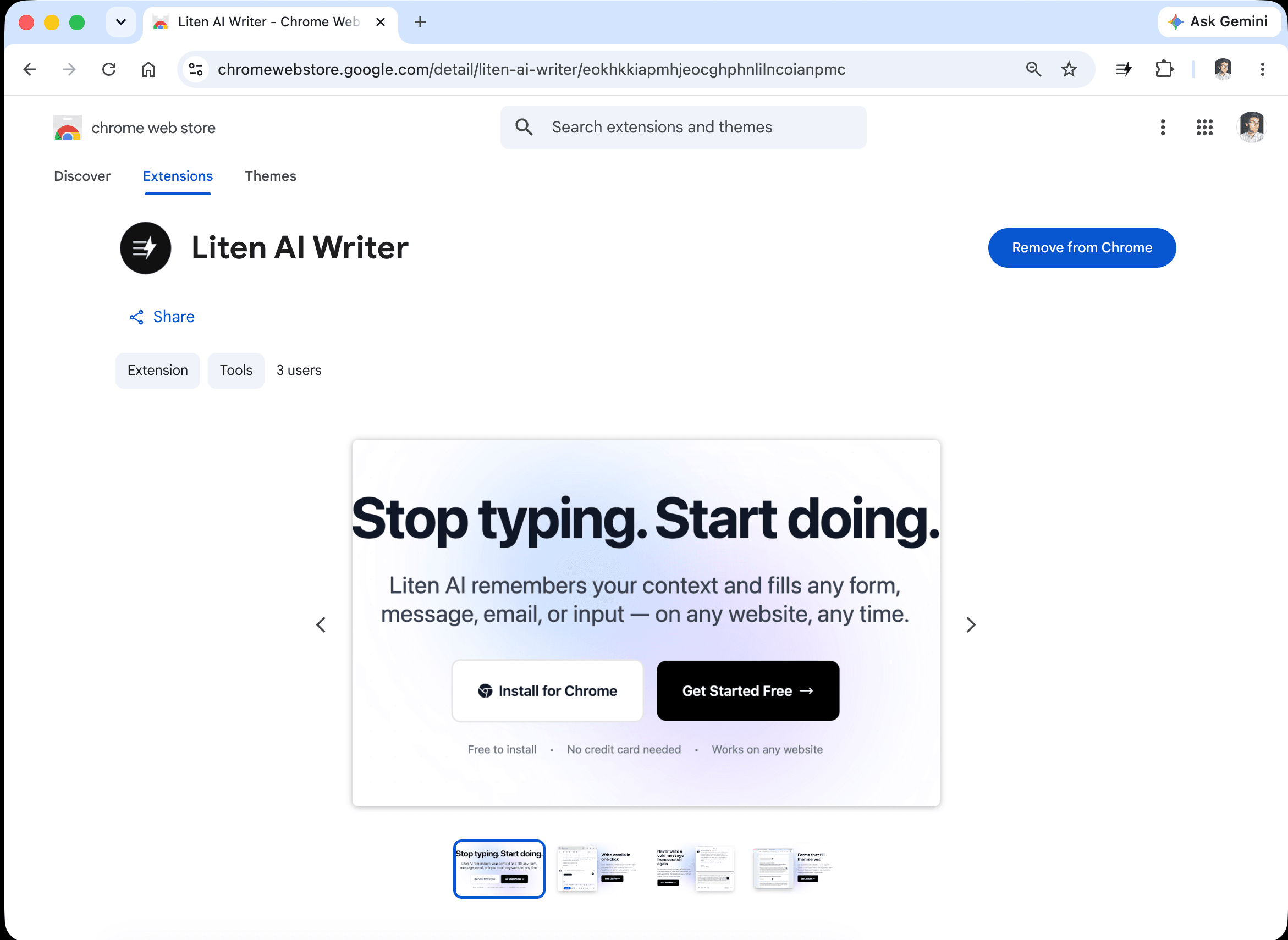
Head to the Liten listing on the Chrome Web Store and click Add to Chrome.
Step 2: Create a Free Account
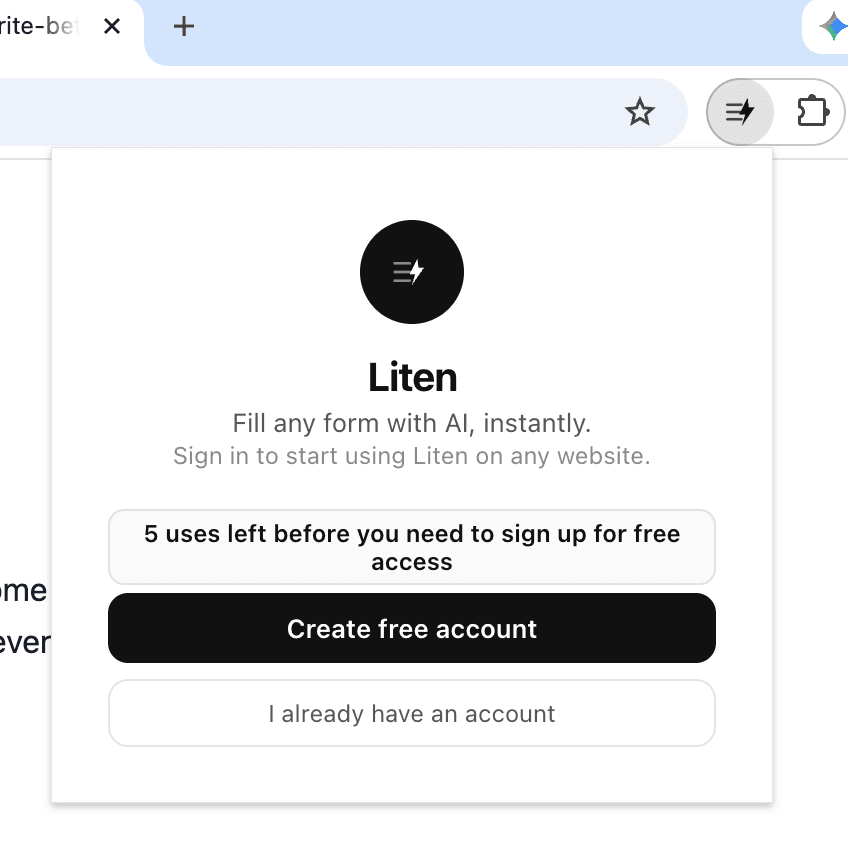
Open the extension and create a free account to get started.
Step 3: Build Your Grant Context
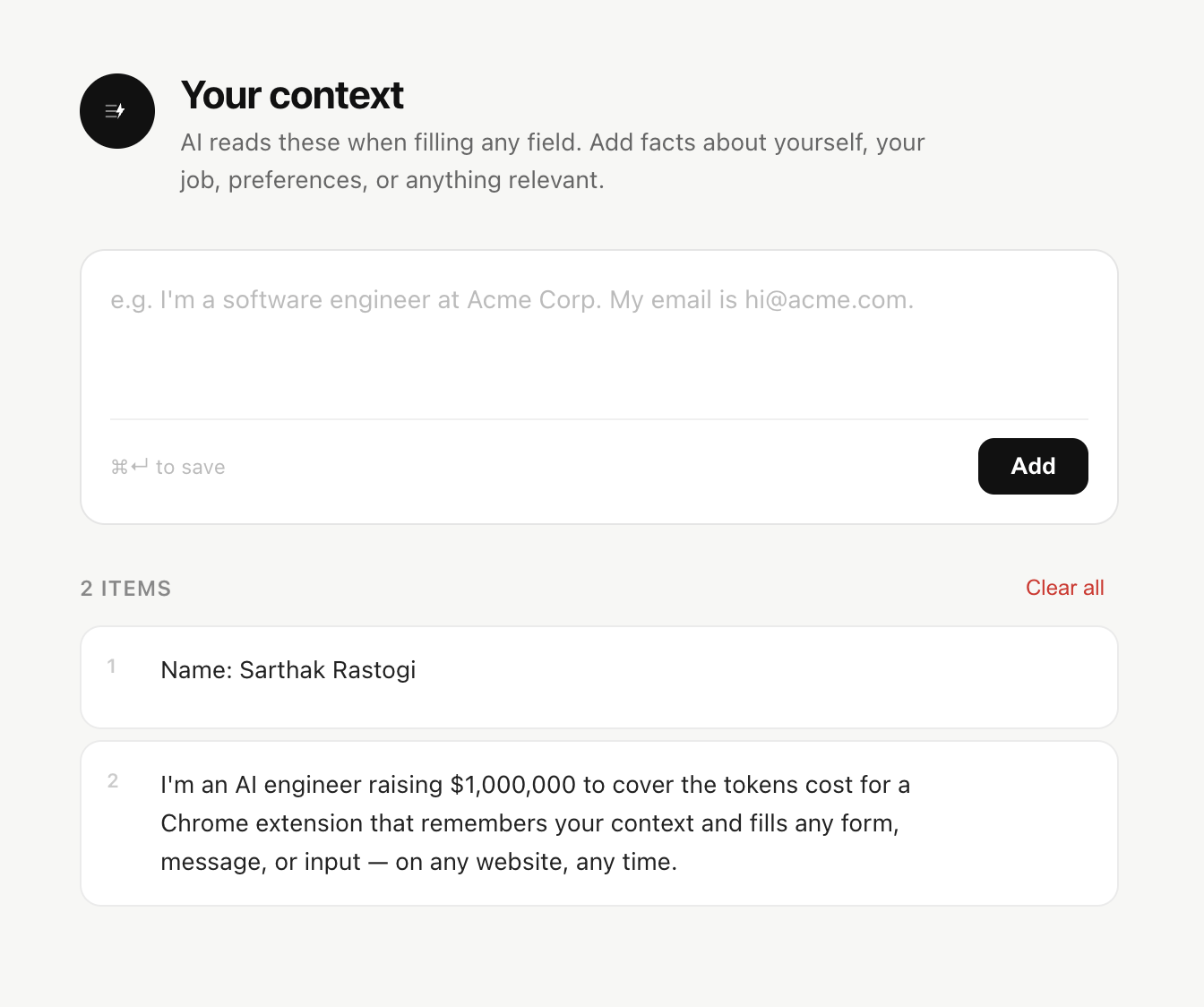
Open the extension popup and add your organizational and programmatic information. This is what powers every response Liten generates.
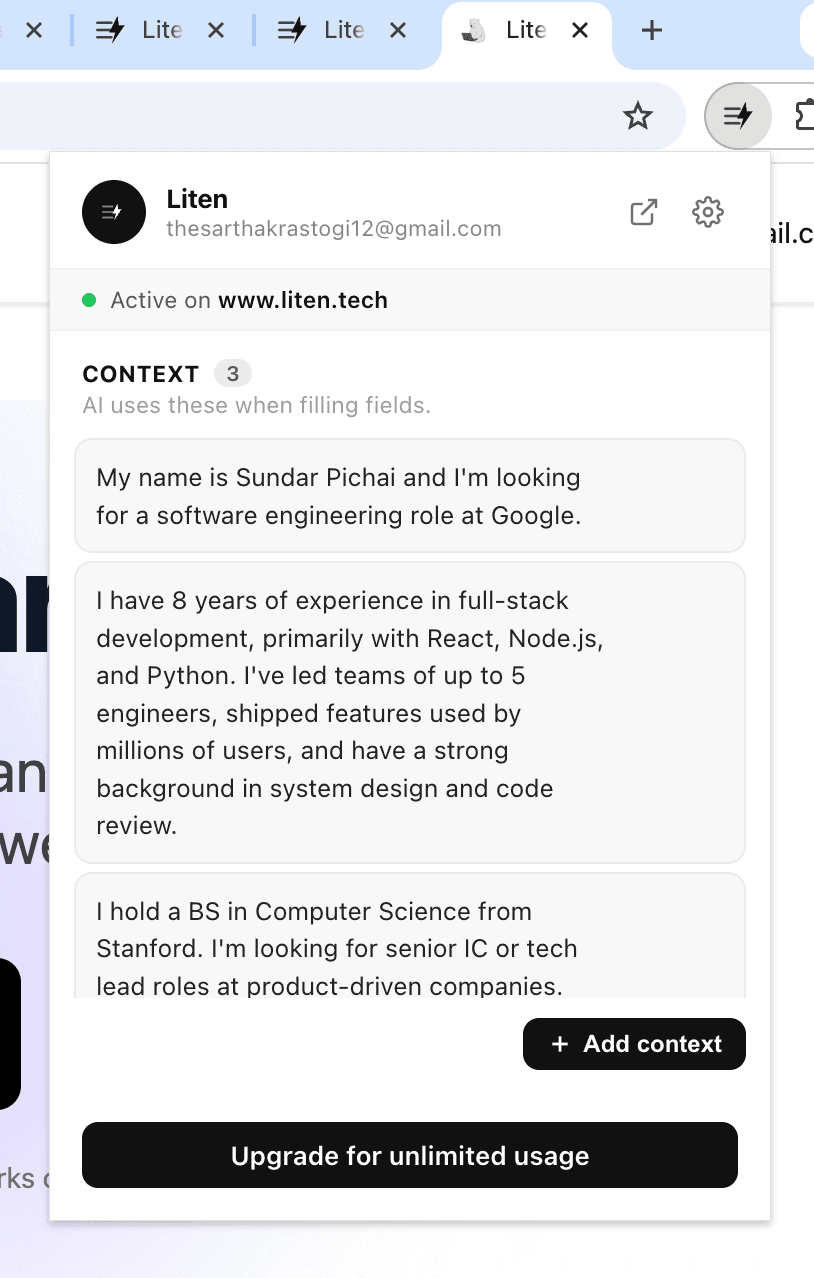
You can also click "Add Context" to manage everything in one place.
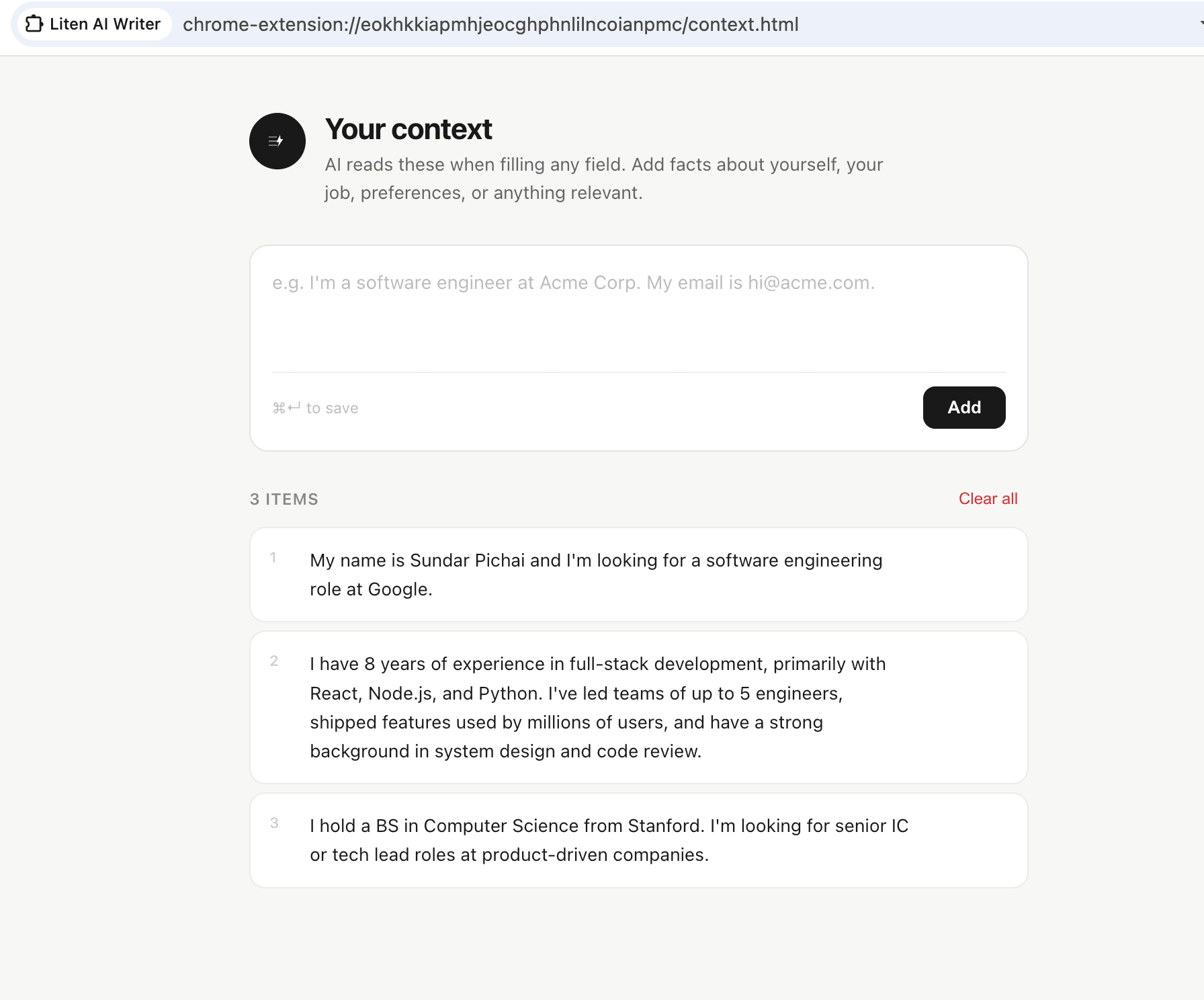
Good grant context includes:
- Your organization's mission statement and founding story
- Key programs and services, with outcomes and statistics
- The population you serve and the need you address
- Your theory of change or methodology
- Key team member qualifications and relevant credentials
- Past grant history and track record
- Budget overview and how you allocate funds
- Any research, data, or evaluations supporting your work
The more detail you add, the more grounded and specific the generated responses will be.
Step 4: Open the Grant Application and Let Liten Write
Navigate to the grant application portal in Chrome. Liten works on any website—Google Forms, custom foundation portals, government grant systems, all of them.
Click into any text field and you'll see the Liten logo appear. Click it to generate a response for that question based on your context.
For a question like "Describe your organization's experience serving this population," Liten pulls from the relevant parts of your context and drafts a coherent, specific answer—giving you a strong starting point in a fraction of the time it would take to write from scratch.
Step 5: Edit and Tailor to the Funder
AI-generated drafts still need a human pass. Review each response and:
- Adjust the emphasis to match what this particular funder cares about
- Add specific statistics or examples that aren't in your context
- Trim or expand to fit character limits
- Make sure the tone matches the funder's application style
The time savings come from not starting from scratch—editing a draft is much faster than writing one.
Use Cases Across Grant Types
Foundation grants: Community, family, and corporate giving programs often ask similar questions across different portals. Liten lets you generate consistent, high-quality answers across all of them.
Government grants: Federal and state applications are often long and complex. Liten can help draft the narrative sections while you focus on compliance and budget.
Academic research grants: Researchers can use Liten to draft background and significance sections, specific aims, and team qualifications.
Emergency and capacity-building grants: Even short applications benefit—a well-drafted 250-word response is easier to start from than a blank box.
A Note on Grant Writing Best Practices
Liten accelerates grant writing—it doesn't replace grant writing expertise. The strongest applications still require understanding what each funder prioritizes, specific data and evidence, and a clear argument for why your approach works. Liten handles the blank-page problem. The strategy and specifics still come from you.
Install Liten for Chrome and try it on your next grant application.