How Customer Support Teams Can Use AI to Respond Faster Without Losing Their Voice
Customer support is one of the most writing-intensive jobs in any company. Support reps write dozens—sometimes hundreds—of responses per day, each one needing to be accurate, empathetic, and on-brand. The pressure to respond quickly leads to rushed, generic replies. The pressure to be thorough leads to slow response times.
Liten is a Chrome extension that generates support responses directly inside web-based helpdesk tools, email clients, and support platforms. Here's how support teams can use it to improve both speed and quality.
The Support Writing Challenge
Templates help with speed but hurt with tone. A response that's obviously templated erodes the customer's confidence that anyone actually read their message. But writing from scratch for every ticket isn't sustainable either.
The middle ground is AI-assisted drafting: fast enough to handle volume, grounded enough in your company's actual information to be accurate, and flexible enough to be personalized for each customer.
How to Use Liten for Support
Step 1: Install the Extension
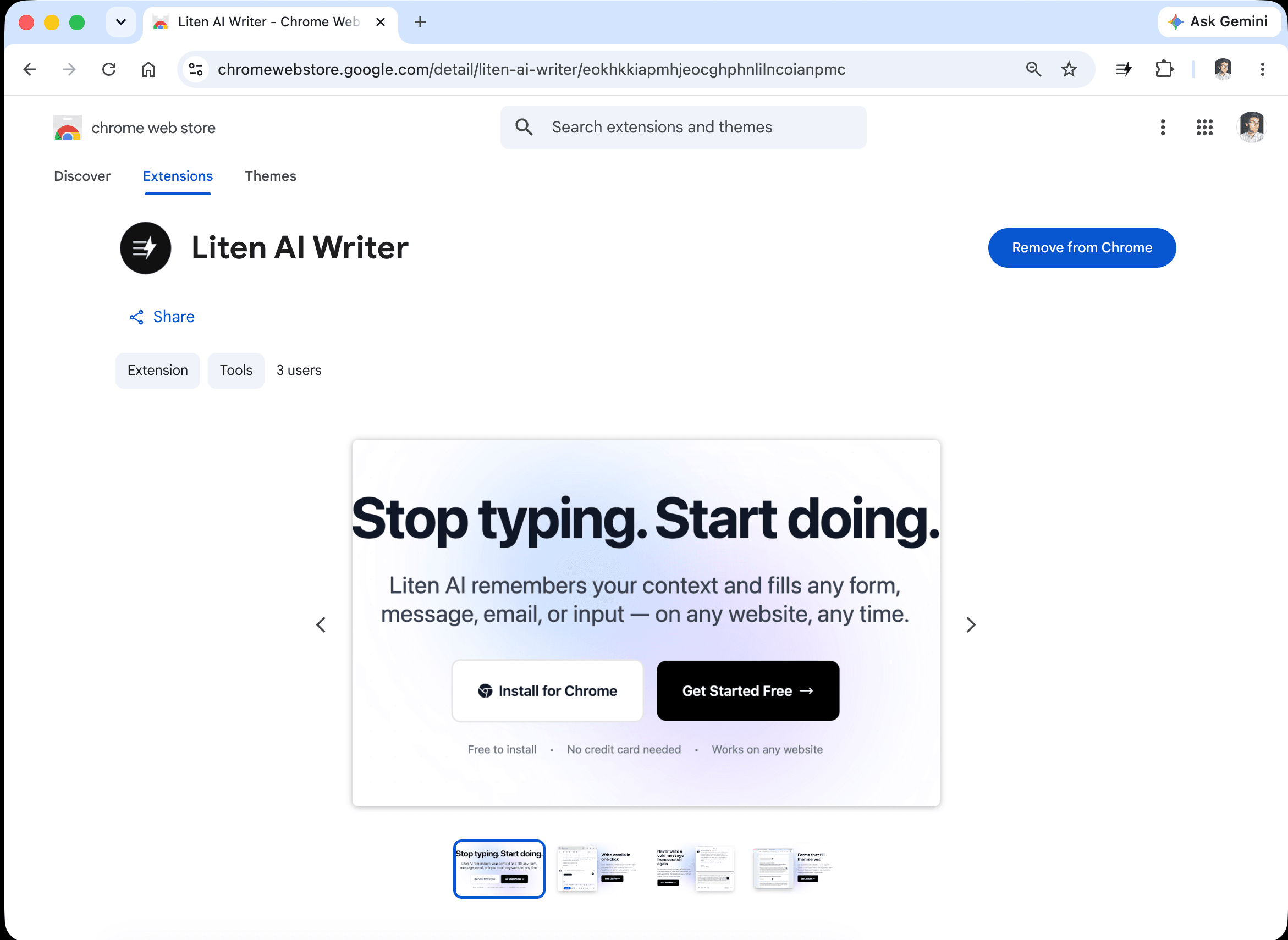
Head to the Liten listing on the Chrome Web Store and click Add to Chrome.
Step 2: Create a Free Account
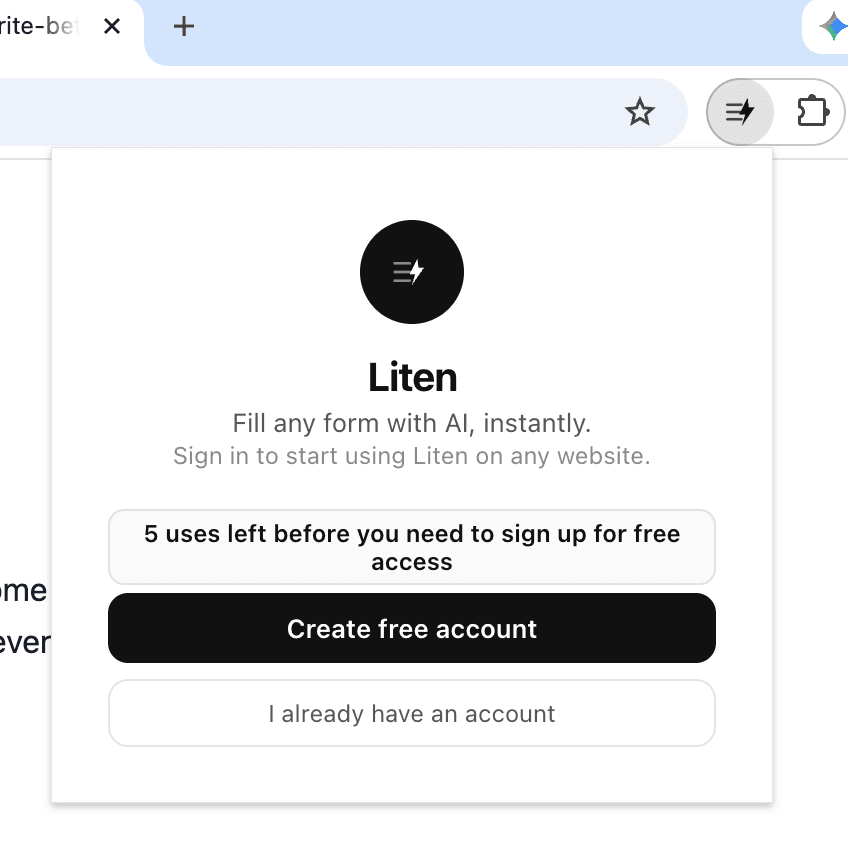
Open the extension and create a free account to get started.
Step 3: Set Your Support Context
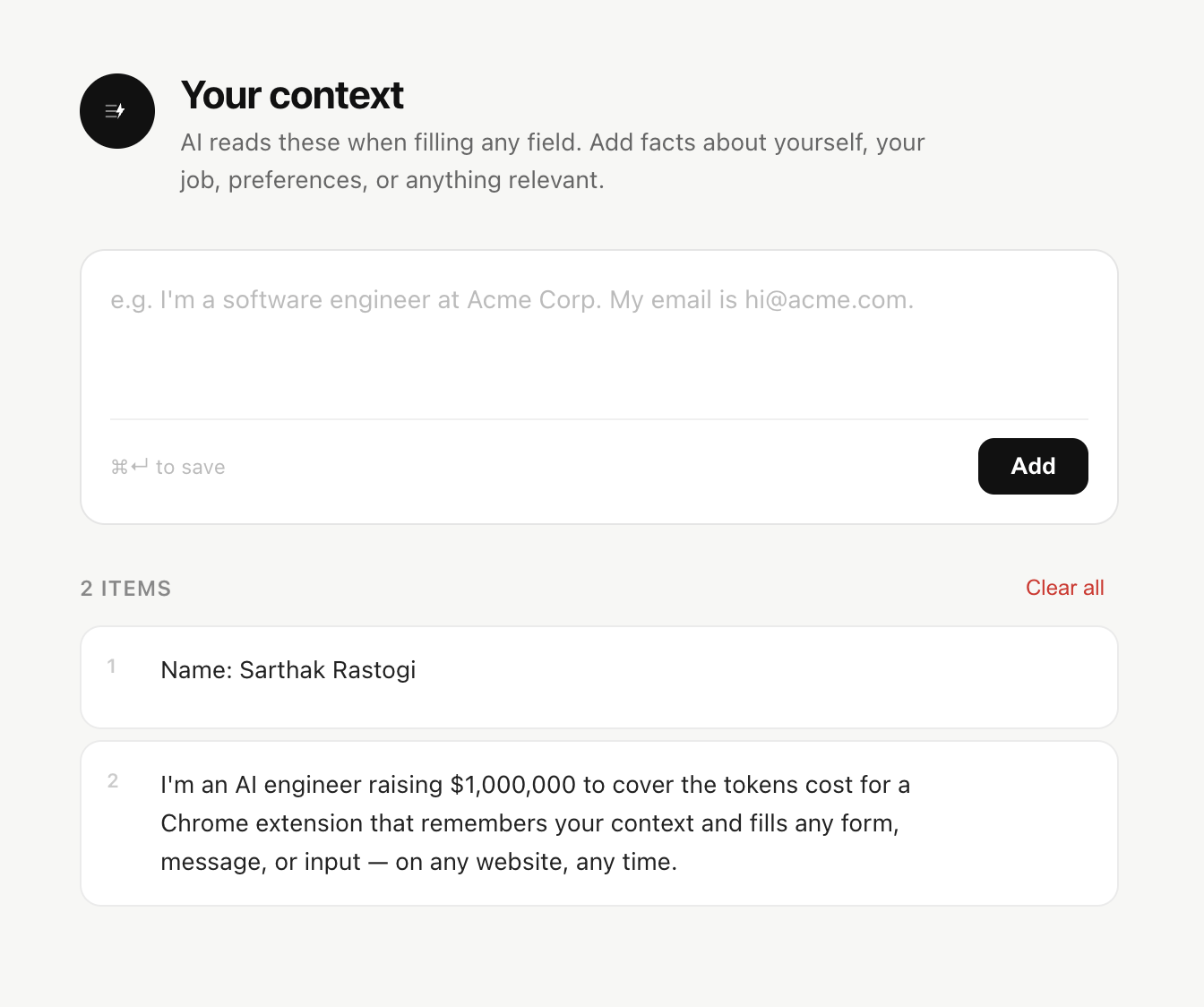
Open the extension popup and add your context. For support teams, this should cover your product, your policies, and your brand voice.
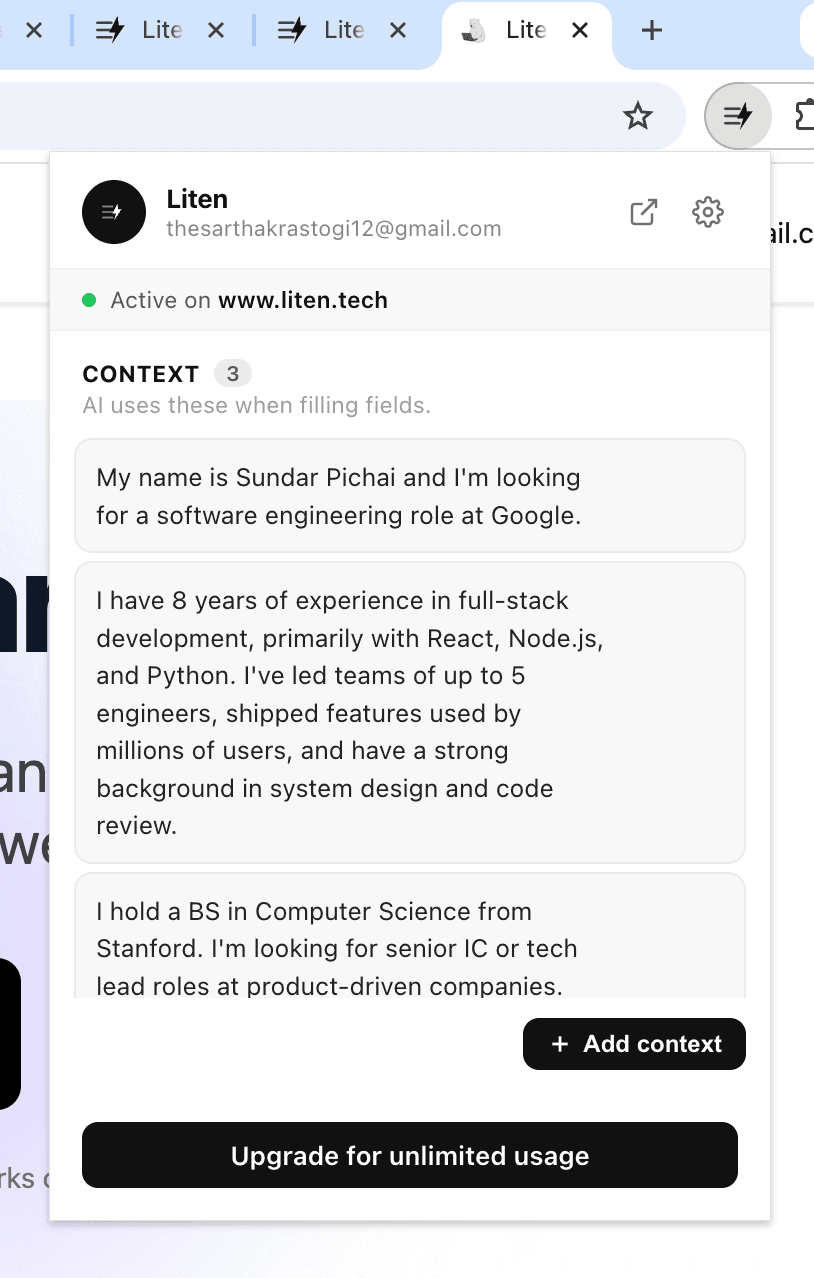
You can also click "Add Context" to manage everything in one place.
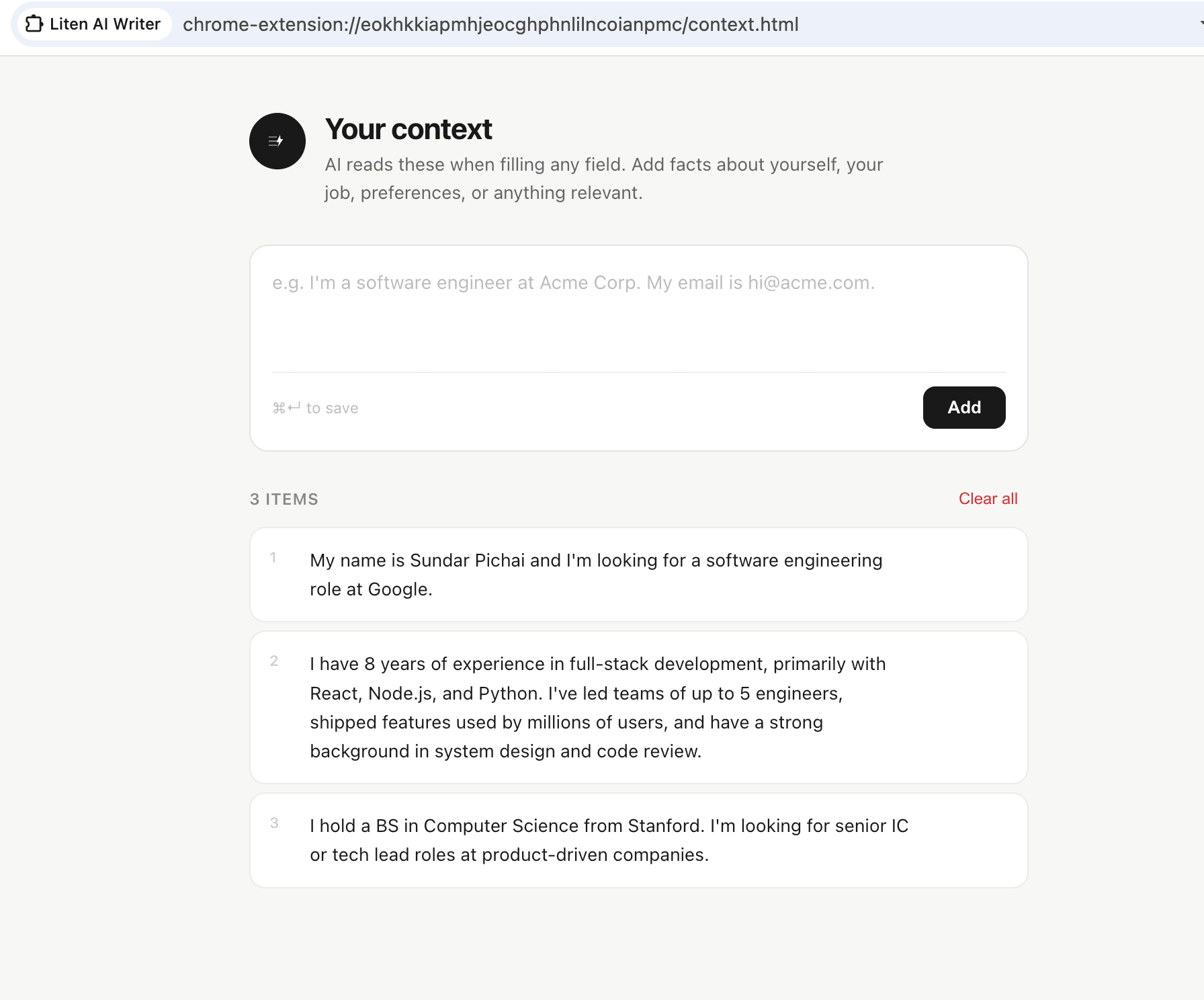
Effective support context includes:
- Your company name and what your product or service does
- Common issues and their standard resolutions
- Your refund, return, or escalation policies
- Tone guidelines—how your brand communicates (friendly, professional, casual, formal)
- Escalation triggers—what issues get sent to a specialist
- Any information reps should always include (support contact, documentation links, etc.)
The more specific this context, the more useful the drafts. Specific product knowledge produces responses that actually answer the customer's question.
Step 4: Generate and Personalize Responses
Liten works in web-based helpdesk platforms, email clients, CRM tools, and live chat interfaces. Click into any response field, click the Liten button, and get an AI-drafted response based on your context.
For email-based support, Liten works directly in Gmail or Outlook on the web:
The most effective workflow is two steps:
-
Generate the draft. Click Liten in the response field. For a billing question, Liten drafts a response covering your billing policy and resolution options. For a technical issue, it drafts troubleshooting steps based on your documented resolutions.
-
Personalize and verify. Add the customer's name, confirm the facts are correct for this specific situation, adjust the tone if needed, and send.
This is significantly faster than writing from scratch, and more consistent than a pure template.
Where Support Teams Get the Most Value
High-volume, repetitive inquiries: Password resets, account questions, shipping inquiries, "how do I do X" questions. Liten drafts the standard response and reps confirm and send in seconds.
Complaint responses: Liten can draft empathetic, professional responses that acknowledge the issue before moving to resolution—the structure that works best for difficult customers.
Escalation handoffs: When a ticket moves from a frontline rep to a specialist, someone needs to write the handoff summary. Liten drafts it.
Follow-up messages: Checking in after a resolution, confirming a replacement was shipped, or asking if an issue was resolved. Liten makes these fast enough to send consistently.
Important Considerations
Accuracy is the priority. AI drafts should always be reviewed before sending. A draft that references the wrong policy does more damage than no draft at all.
Context is a living document. Products change, policies change. Keep your Liten context updated so the drafts stay accurate.
Not every response needs Liten. For complex or emotionally charged situations, the rep should write from scratch. Liten is most valuable for the high-volume, routine interactions.
The Result: Faster Responses, Happier Customers
When your team can respond to more tickets per hour without sacrificing quality, everyone benefits—customers get faster help, reps feel less overwhelmed, and the metrics your team is measured on improve.
Install Liten for Chrome and see how it fits into your support workflow.